Training your AI Model
For the following steps you need to be connected to the ONE AI Cloud
Ensure that your training data is uploaded, labeled, and properly prepared. This includes applying any necessary prefilters and selecting the most effective augmentations. Once your data is ready, double-check your model and hardware settings before starting the training process
Training a new AI Model
You can create new AI model instances, so you can save old trained models and try out new ones.
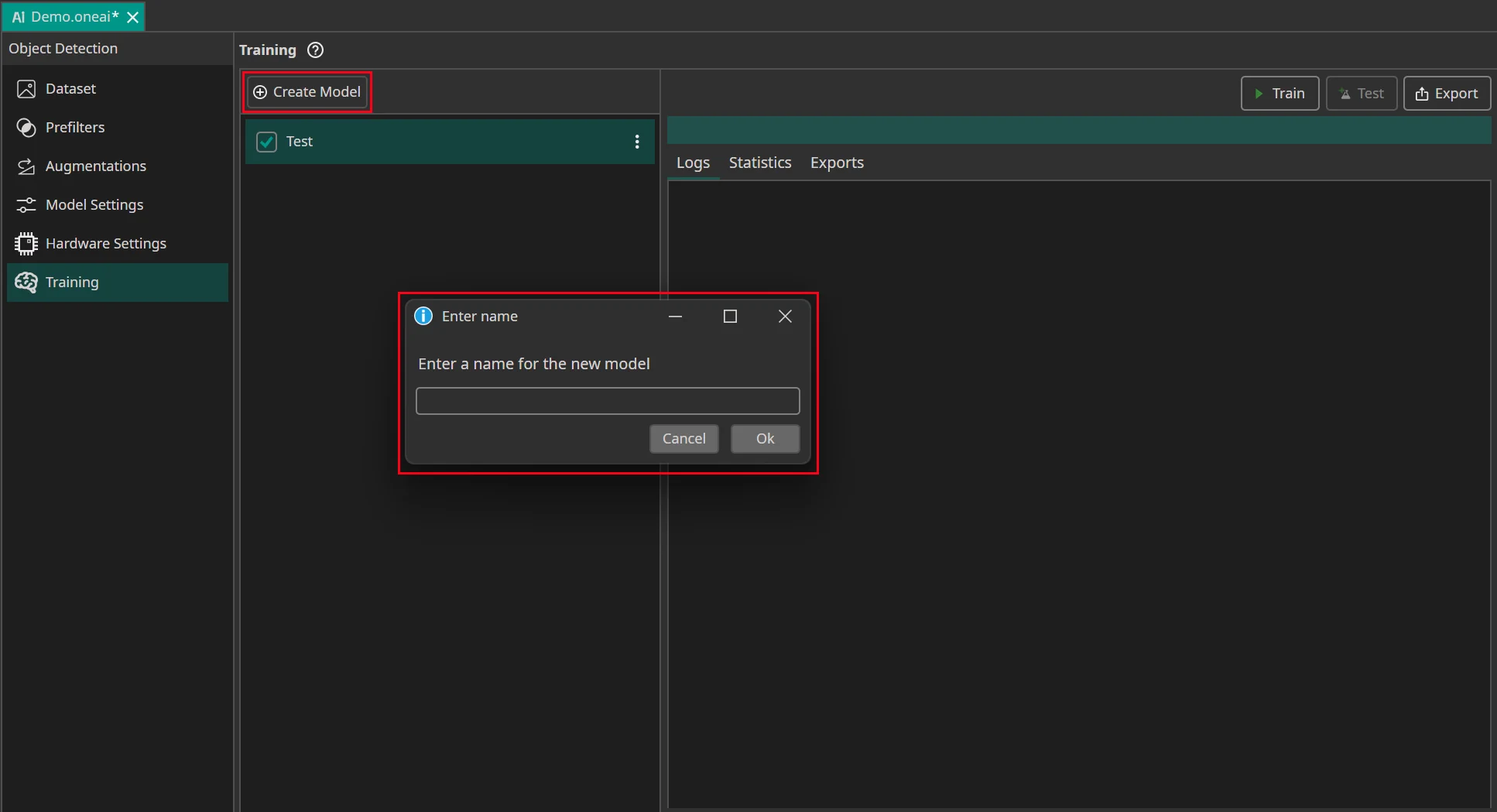
Select the model you want to train with the current data and settings. Then click on the Train button.

First, you need to specify for how long you want to train your model. A detailed guide what training time works best can be found here. You can also use early stopping to end the training early if the model doesn't improve anymore. To do so you need to set the Patience for Early Stopping. For example, if you set the training time to an hour and the patience to 10%, the training is stopped early if the model doesn't improve for six minutes.
If you want to deploy your model on hardware with limited resources, like microcontrollers or FPGAs, we recommend to activate the box Enable Quantization Optimization. This trains a quantized model, which uses fewer bits to represent the model's weights. Thus, a quantized model needs less memory and is much faster, but has slightly decreased accuracy. Because training a quantized model is slower than normal training and quantized models can't be exported in the ONNX format, it might be beneficial to start with normal training to make sure that all settings are correct and then train a quantized model in a final training run.
The setting Focus on Images with Objects allows you to choose whether you only want to train your model on images that contain objects. This allows the model to learn faster how objects look and how to detect them, but the model also spends less time learning how to correctly identify the background.
Finally, if you selected a model that was already trained before, you can decide whether you want to continue its training or override the existing model. If you are training the model for the first time, this setting is ignored.
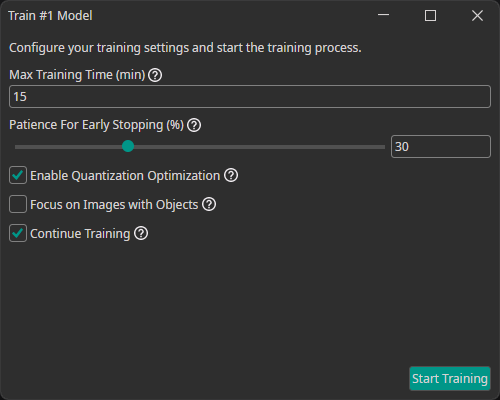
After you press on Start Training, you see how many Credits the training will cost. If you use early stopping, the actual costs can be less than the anticipated cost, because the training might end early if there are no further improvements. The total time is always a bit higher than the training time, since the data needs to be uploaded and preprocessed, but you only pay for the time the AI is actually trained on the server.
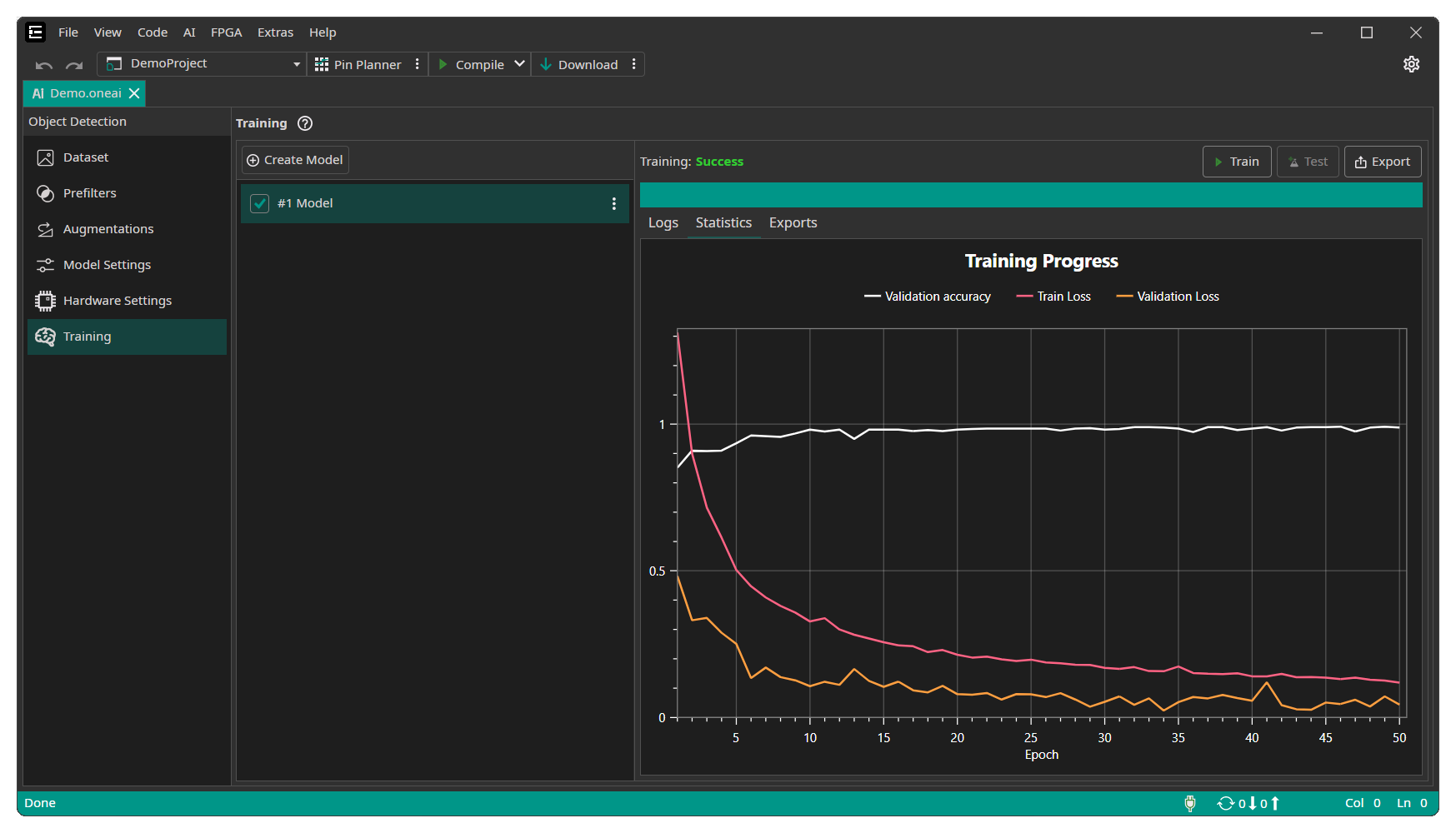
During the training you can see the current training progress in the Statistics tab. You can stop the training manually if you see no further improvements after a longer time of training.