Wildfire Segmentation Demo
About this demo
In this tutorial, you will learn how to train a semantic segmentation model to detect wildfire areas in drone imagery. Unlike object detection (which draws bounding boxes) or classification (which labels entire images), segmentation provides pixel-precise masks that highlight exactly which regions of an image contain the target class.
This demo uses the Wildfire dataset to demonstrate the complete segmentation workflow:
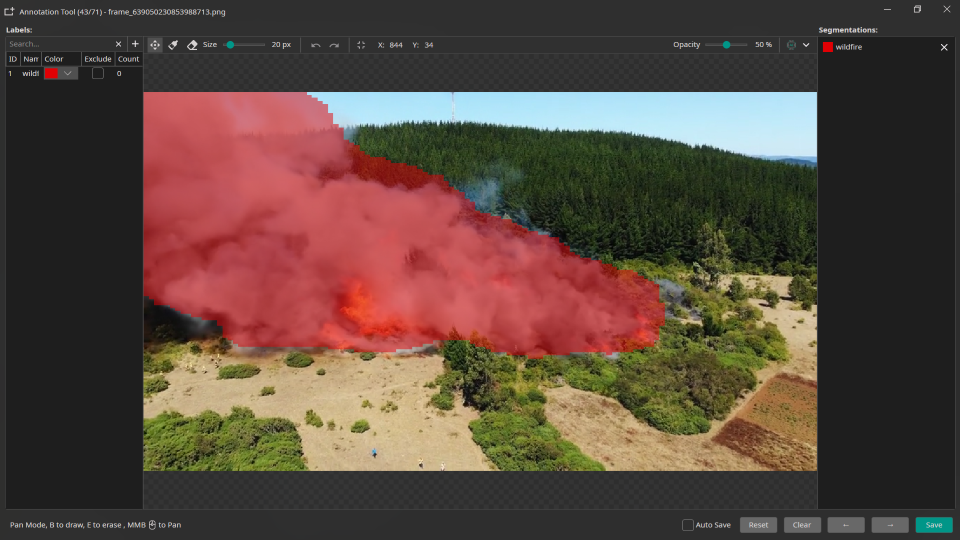
- Annotating images with pixel-level masks using the brush tool
- Configuring filters, augmentations, and model settings
- Training a float model in the cloud
- Exporting to ONNX format
- Testing with segmentation mask overlay on images and video
Dataset overview
The Wildfire dataset contains drone imagery showing areas affected by wildfires. Each image is paired with a segmentation mask that highlights the fire-affected regions at pixel-level precision.
Dataset characteristics:
- Resolution: 128×128 pixels (after initial resize)
- Label: Single class - "wildfire"
- Mask format: PNG files with
_seg.pngsuffix - Split: Training images with 20% validation split
Mask file convention
In ONE AI, segmentation masks are stored alongside images using the _seg.png suffix:
- Image:
frame_639050230767487087.png - Mask:
frame_639050230767487087_seg.png
The mask file encodes label IDs as RGB values, allowing multiple classes in a single segmentation task.

Original drone image

Segmentation mask

Segmentation mask overlay
Setting up the project
Step 1: Download the project
Download the Wildfire project from our repository:
Step 2: Open the project
- Extract the downloaded ZIP file
- In ONE AI, click File → Open Project
- Navigate to the extracted folder and select
Wildfire.oneai
Step 3: Verify segmentation mode
The project is pre-configured for segmentation. Verify the settings:
- Go to the Settings tab
- Confirm Annotation Mode is set to Segmentation
Annotating images (optional)
The Wildfire project comes with pre-labeled masks. However, understanding the annotation workflow is essential for creating your own segmentation datasets.
Opening the annotation tool
- Navigate to the Train folder in the Dataset panel
- Double-click any image to open the Segmentation Tool
Brush tool basics
| Tool | Shortcut | Description |
|---|---|---|
| Brush | B | Paint with the selected label color |
| Eraser | E | Remove segmentation (set to transparent) |
| Pan | Middle mouse button | Navigate around the image |
Drawing masks
- Select a label from the Labels panel (e.g., "wildfire")
- Press
Bto activate the Brush tool - Adjust the Brush Size slider (4-120 pixels)
- Paint over the target regions in the image
- Use
Eto switch to Eraser and correct mistakes
Keyboard shortcuts
| Shortcut | Action |
|---|---|
B | Switch to Brush |
E | Switch to Eraser |
Ctrl+Z | Undo last stroke |
Ctrl+Y | Redo |
Ctrl+S | Save mask |
If you start drawing without selecting a label, a popup will appear allowing you to quickly choose or create a label.
Saving masks
Masks are automatically saved when you:
- Switch to another image
- Close the annotation tool
- Press
Ctrl+S
The mask is saved as {imagename}_seg.png in the same folder as the original image.
Filters and augmentations
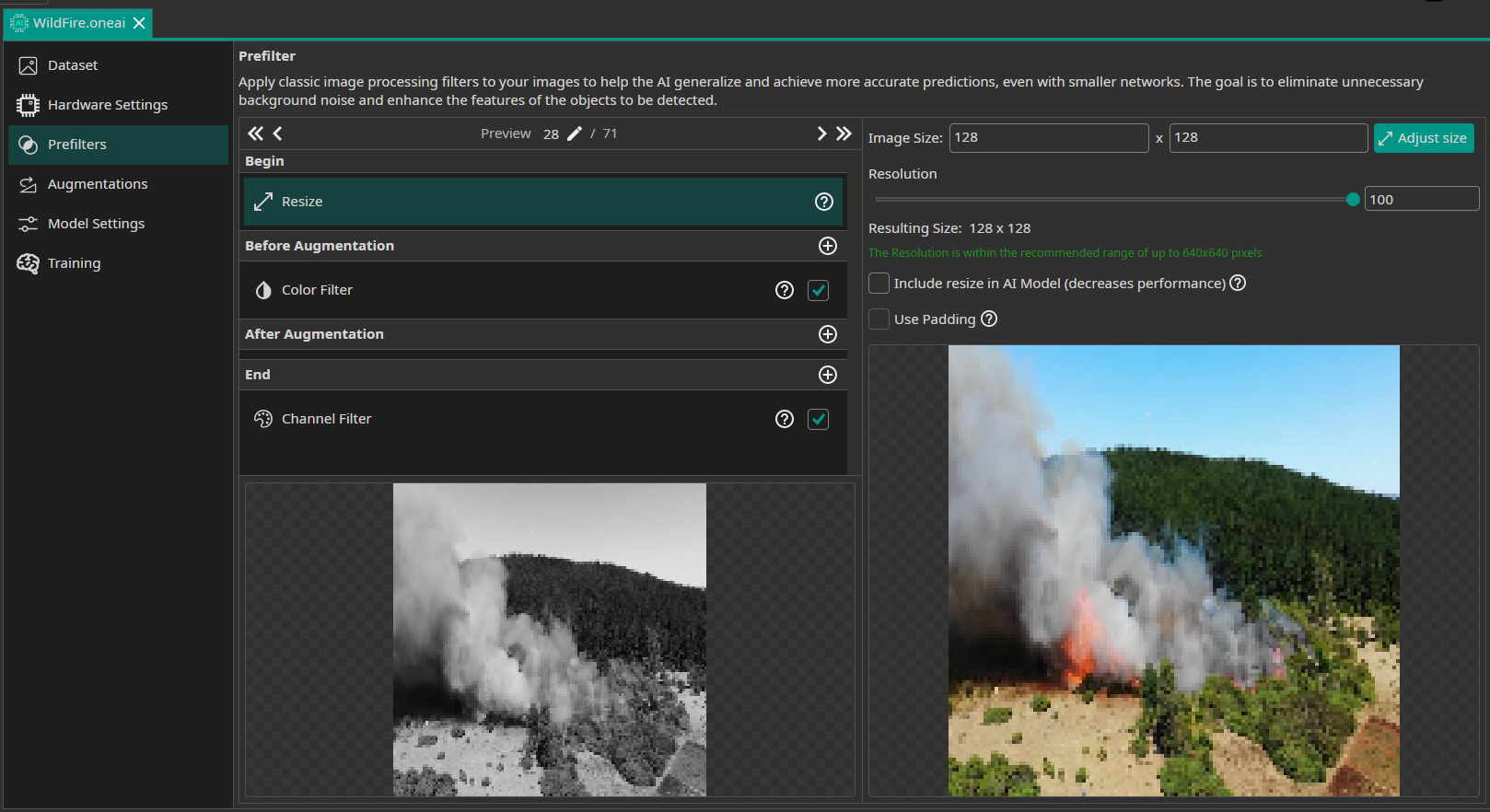
Prefilters
The Wildfire project uses the following prefilter configuration:
Initial Resize
- Width: 128 pixels
- Height: 128 pixels
- Strategy: Stretch (to maintain consistent input size)
Color Filter (Before Augmentation)
- Saturation: 0% (converts to grayscale)
This simplifies the input by removing color information, focusing the model on intensity patterns.
Channel Filter (End)
- Channels: R only (single channel output)
This reduces the input from 3 channels (RGB) to 1 channel, improving efficiency.
Augmentations
Augmentations increase dataset diversity and improve model generalization:
| Augmentation | Settings | Purpose |
|---|---|---|
| Move | ±10% | Shifts the image position randomly |
| Rotate | ±20° | Rotates within range to handle orientation variance |
| Flip | Horizontal | Mirrors images for additional variety |
| Resize | 50-150% | Scale variation to handle different fire sizes |
| Color | Brightness/Contrast variation | Simulates different lighting conditions |
When augmentations transform the image (rotate, flip, resize), the segmentation mask is automatically transformed identically to maintain alignment.
Model settings
Output settings
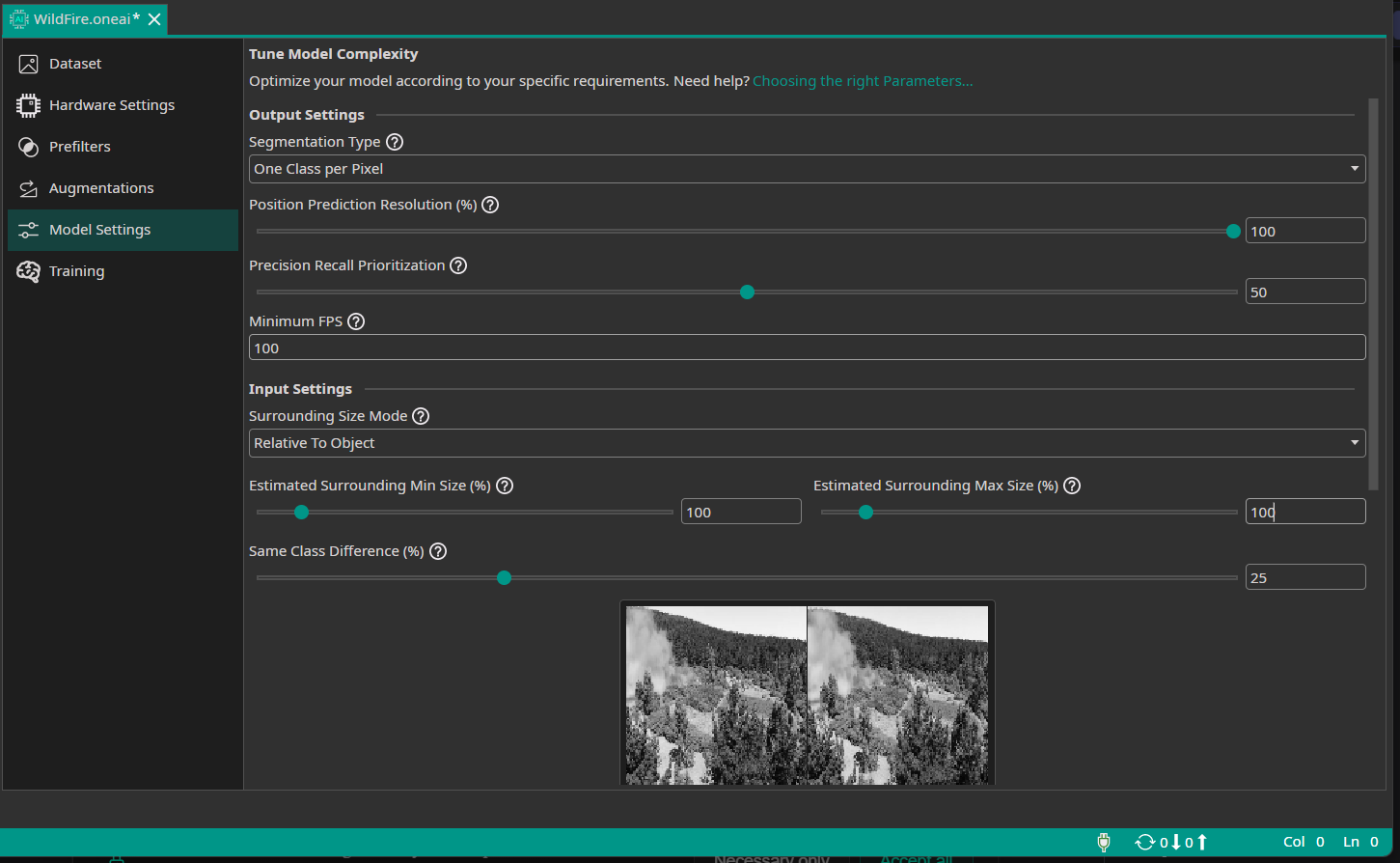
Navigate to Model Settings → Output Settings to configure how the segmentation model produces its predictions.
Segmentation Type: One Class per Pixel
This setting defines the segmentation approach:
- One Class per Pixel (semantic segmentation): Each pixel in the output is assigned to exactly one class. The model outputs a classification matrix where each cell contains the predicted class ID (0 for background, 1 for wildfire, etc.).
For wildfire detection, we use One Class per Pixel to get precise fire region boundaries.
Position Prediction Resolution: 100%
This setting determines the resolution of the segmentation mask output.
The Position Prediction Resolution controls how detailed the segmentation mask will be relative to the input image size:
-
100% resolution: Output mask has the same resolution as the input
- Example: 128×128 input → 128×128 mask (16,384 pixels to classify)
-
25% resolution (Wildfire setting): Output mask is 25% of input dimensions
- Example: 128×128 input → 32×32 mask (1,024 pixels to classify)
- The mask is upscaled for display, but predictions are made at 32×32 resolution
-
10% resolution: Very coarse segmentation
- Example: 128×128 input → 12×12 mask (144 pixels to classify)
For the Wildfire dataset at 128×128 input resolution:
- 100% resolution produces a 128×128 segmentation mask
Precision Recall Prioritization: 50%
Controls the model's bias toward false positives vs. false negatives:
-
< 50% (Favor Precision): Reduces false alarms - only labels regions as wildfire when highly confident
- Use when false positives are costly (e.g., triggering unnecessary alerts)
-
50% (Balanced): Equal weight on precision and recall
- Recommended starting point for most applications
-
> 50% (Favor Recall): Reduces missed detections - labels more regions as potential wildfire
- Use when missing a fire is more dangerous than false alarms
For wildfire detection, 50% is a balanced approach that catches most fires without excessive false alarms.
Input settings
The model input settings help the AI understand your detection requirements. For detailed explanations of these parameters, refer to the model settings guide.
Navigate to Model Settings → Input Settings and configure:
-
Surrounding Size Mode:
Relative To Image -
Estimated Surrounding Min/Max : 100-100%
-
Same Class Difference: 25%
Wildfire appearance varies moderately in intensity and texture but maintains recognizable characteristics -
Background Difference: 25%
Drone imagery backgrounds include forests, fields, and urban areas with moderate variation -
Detect Complexity: 25%
Moderately complex task—fire regions have varying patterns but are generally distinctive from background
Hardware settings
For this demo, we'll use default CPU settings for training. The trained model will be exported as ONNX for testing.
Training the model
Step 1: Create and train the model
- Go to the Training tab
- Click the Sync button in the toolbar
- Wait for the upload to complete (images and masks are uploaded)
- Click Create Model
- Enter a model name (e.g., "Wildfire_Segmentation")
- Configure training settings:
- Patience: 10 (stops early if no improvement)
- Quantization: None (float training for best accuracy)
- Click Start Training
Training time depends on dataset size and model complexity. For this dataset, expect approximately 5-15 minutes.
Step 2: Monitor progress
The training progress panel shows:
- Current epoch and loss values
- Validation metrics
- Estimated time remaining
Wait for training to complete. The model will automatically appear in the Models folder.
Testing the model
Testing on images
After training is complete, the model can be evaluated by clicking Test. This opens the test configuration menu.
- Click Test to open the test configuration
- The current model will be selected automatically
- Click Start Testing to begin the testing process
- After a short time, results will be displayed in the Logs section
- View detailed results with segmentation masks by clicking View Online or navigating to Tests on the one-ware cloud platform
The segmentation output shows:
- Mask overlay: Colored regions indicating detected wildfire areas
- Class legend: Color mapping to label names
- Metrics: IoU (Intersection over Union), precision, recall


Exporting the model
Once training completes, export the model for testing and deployment:
ONNX Export
- Click on Export to open the export configuration menu
- Select ONNX as the export format
- Click Start Export
- Once the server completes the export, download the model by clicking the downward arrow in the Exports section
The exported .onnx file can be used for:
- Testing within ONE AI
- Integration with external applications
- Deployment to CPU/GPU inference engines
- Float (32-bit): Best accuracy, larger file size, CPU/GPU deployment
- Quantized (8-bit): Slightly reduced accuracy, smaller size, FPGA/edge deployment
Camera Tool
Testing on Video with the Camera Tool
The Camera Tool allows you to test your exported ONNX model with live video input, displaying the segmentation mask overlaid on each frame in real-time.
Step 1: Open the Camera Tool
- Click on AI and then on Camera Tool
- The Camera Tool window will open with video preview and settings panels
Step 2: Add a Simulated Camera (Optional)
For testing with dataset images:
- Click on Add simulated camera in the top-right corner
- Select Dataset
- This will add the simulated camera
- You can adjust additional settings, such as frames per second, by clicking on the gear icon
Alternatively, you can use a real connected camera by selecting it from the camera list.
Step 3: Start Live Preview with Segmentation Overlay
- Click on Live Preview
- Select the previously exported model from the dropdown
- Set the simulated camera (or your connected camera) as the Camera
- Choose Segmentation as the Preview mode
- Click the play button to start the camera
The segmentation model will process each frame automatically:
- Detected wildfire regions appear with the label color (semi-transparent overlay)
- The overlay updates frame-by-frame as the video plays
- Non-detected areas remain unchanged
- In the bottom-right corner, you can see the inference performance (frames per second)
Understanding segmentation metrics
| Metric | Description |
|---|---|
| IoU (Intersection over Union) | Overlap between predicted and ground truth masks. Higher is better (0-100%). |
| Pixel Accuracy | Percentage of correctly classified pixels. |
| Precision | Of pixels predicted as wildfire, how many are correct. |
| Recall | Of actual wildfire pixels, how many were detected. |
Summary
In this tutorial, you learned how to:
✅ Set up a segmentation project with the Wildfire dataset
✅ Annotate images using the brush and eraser tools
✅ Configure prefilters (grayscale, single channel) and augmentations
✅ Set segmentation-specific model output settings
✅ Train a float model in the cloud
✅ Export to ONNX format
✅ Test with segmentation mask overlay on images and video

Need Help? We're Here for You!
Christopher from our development team is ready to help with any questions about ONE AI usage, troubleshooting, or optimization. Don't hesitate to reach out!