Tips for Training your own AI Models
What kind of AI models can I build with ONE AI?
Currently, ONE AI can create models that solve various computer vision tasks. You can work on audio or time series data as well, by converting it to a visual representation with OneWare Studio's Spectrogram Generator. We are planning to add models that work directly on time series data in the future.
The supported computer vision tasks are:
- Image Classification: assigning categories that apply to the entire image (e.g. defective vs. non-defective)
- Object Detection: identifying and locating multiple objects within an image (e.g. detecting objects on an assembly line)
- Semantic Segmentation (coming soon): assigning a class label to each pixel in the image (e.g. marking different tissue types in medical images)
Create your first AI project
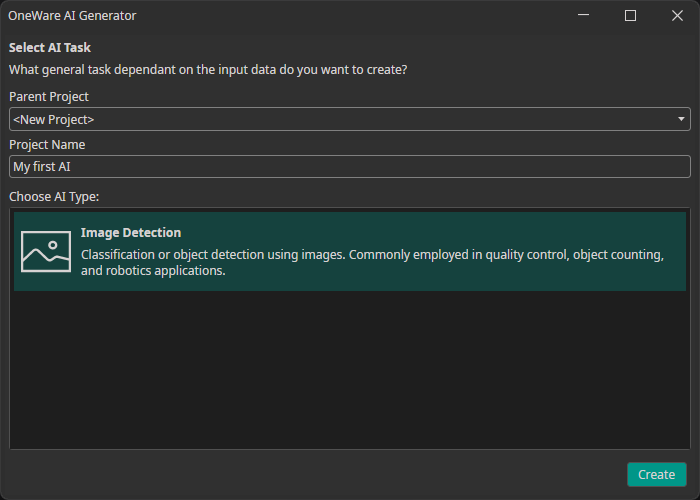
The first step to creating your own AI model is to create a new project in OneWare Studio. To do so you need to click on AI in the menu bar and select Open AI Generator.
Load your dataset
🔗 dataset guide
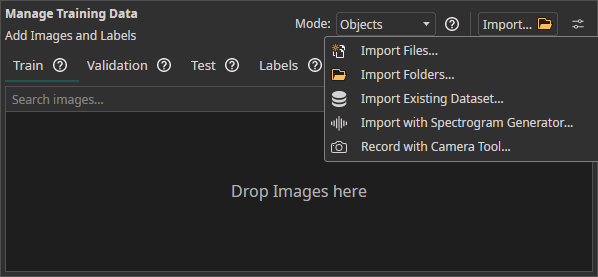
To load your images into OneWare Studio, you need to go to the Dataset tab in your ONE AI workspace. At the top-right is a button that allows you to import your data. You can load unlabeled images or import an existing dataset that is already labeled. You can even use OneWare Studio's built-in Camera Tool to record a dataset with a connected camera.
You can provide reference images to give additional context on how your objects are supposed to look. For example, if you want to detect defects on a product, you can provide images of non-defective product as a reference. You can learn more about this in this tutorial.
Add filters to process your images
🔗 guide on image filters
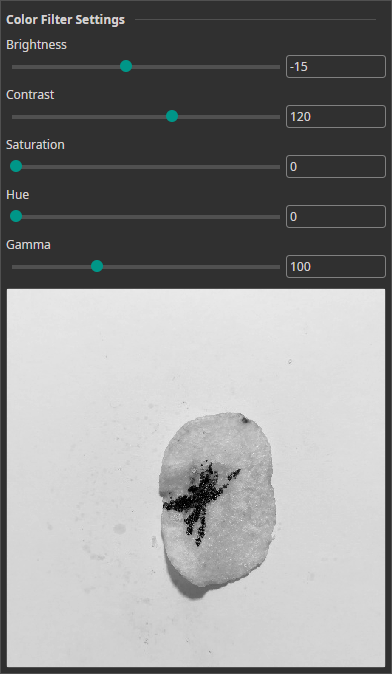
You can use filters to prepare your images for the training process. To get the best results, you should try to simplify the images as much as possible, while keeping all relevant information for your application. For example, you should use the Resolution Filter to reduce the image size to the minimum that still keeps the important details visible. This makes the task a lot easier for the AI model, because it needs to analyze a smaller image area to make its predictions. Other useful filters for reducing unnecessary information are the Crop Filter, which crops the image to the region of interest or the Color Filter combined with the Channel Filter to convert the images to grayscale and only keep a single color channel.
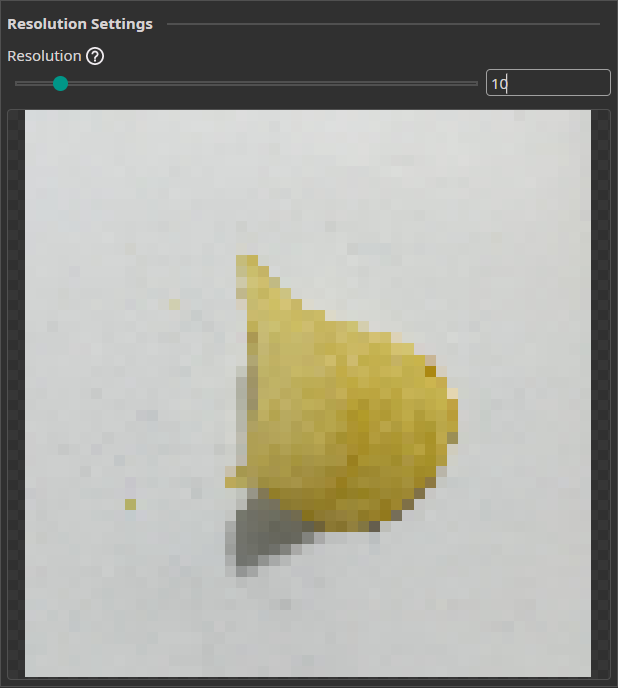
You can also use filters to enhance relevant information in your images. For example, you can use the Color Filter to adapt the contrast or brightness of your images, making it easier for the model to distinguish between different features.
Add augmentations to increase dataset size
🔗 guide on augmentations
You can use data augmentation to artificially increase the size of your dataset by applying random transformations to your images during the training process. This can help to improve the performance of your AI model and prevent overfitting, especially if you have a small dataset. You can also use augmentations more targeted to simulate specific conditions that might occur in your application, such as different lighting conditions or rotations.
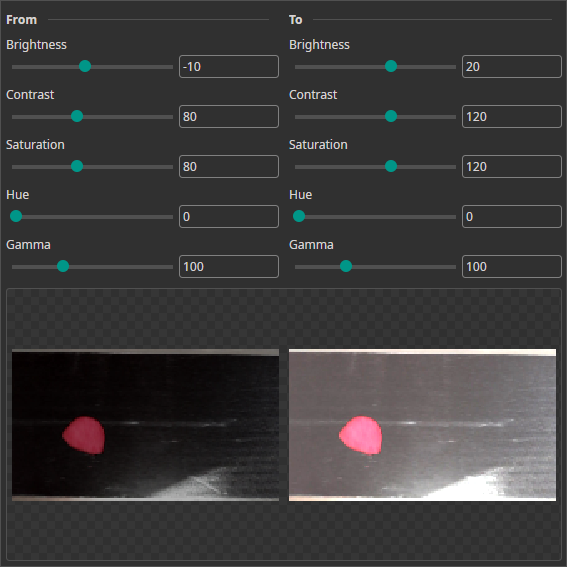
The default augmentations are a good starting point, but we advise to tune them to your specific application. You should keep in mind that not all augmentations are suitable for every use case. For example, if you are trying to detect labels, it doesn't make sense to flip the images, because your model won't encounter a mirrored label in the real world.
Provide context for your application
To get the best results, you should provide some context information about your application in the Model Settings tab. By providing some simple estimates, like the general task complexity or the variance between objects of the same class, ONE AI can tune the model architecture to your specific use case.
Evaluating your Model
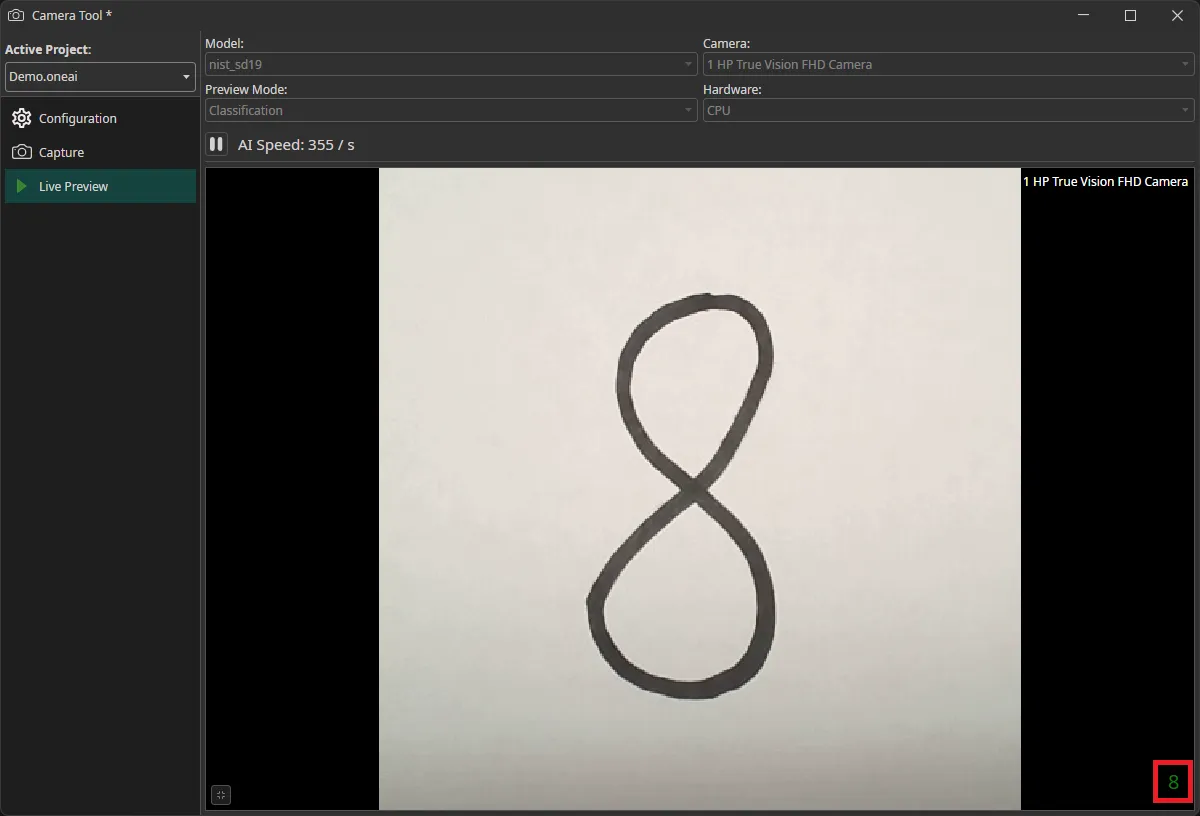
You can run the model test to compute various performance metrics for your trained model. This will also visualize the predictions of your model for a couple of test images. For further evaluation, you can export your model as an ONNX file and run it directly in OneWare Studio. You can add it in the Annotation Tool, to make predictions for individual images or use it in the Camera Tool to test it with a live camera feed.
Where to go from here?
We have several different guides and tutorials to help you get started with ONE AI:
Need Help? We're Here for You!
Christopher from our development team is ready to help with any questions about ONE AI usage, troubleshooting, or optimization. Don't hesitate to reach out!