Tennis Ball Tracking Demo
To try the AI, simply click on the Try Demo button below. If you don't have an account yet, you will be prompted to sign up. Afterwards, the quick start projects overview will open where you can select the Tennis. After installing ONE WARE Studio, th project will open automatically.
About this demo
This demo showcases a real-world application of tracking a tennis ball during gameplay. The primary challenge in this scenario is the extremely small size of the ball within the frame. This means we must use Full HD resolution for reliable detection.
The dataset was created from a video, utilizing 111 labeled frames (44 for training, 42 for validation, and 24 for testing). Since the ball is often obscured or held by a player, only 28 objects were labeled in the training set where the ball was in play.
This project demonstrates that tailoring the AI architecture to the specific task can yield significant improvements in efficiency and accuracy compared to general-purpose object detection models. This is especially true when dealing with video analysis or high-resolution requirements.
Comparison: YOLO26n vs. Custom CNN
To evaluate the performance, we compared a custom ONE AI model against the latest lightweight YOLO model (YOLO26n), trained using Roboflow.
The Challenge with YOLO
When initially trained without augmentations, the YOLO model failed to detect a single ball on the 111-frame dataset (44 train, 42 validation, 24 test). After applying augmentations via Roboflow, usability improved, but significant issues remained:
- Low Confidence Trigger: To detect the ball consistently, the confidence threshold had to be lowered to approximately 0.2.
- Stability Issues: The model frequently predicted double detections for the same object, likely due to the lack of Non-Maximum Suppression (NMS) in this lightweight architecture.
- Computational Cost: Processing Full HD images required 51.8 GFlops, resulting in only 2 FPS on a laptop CPU.
The Solution with ONE AI
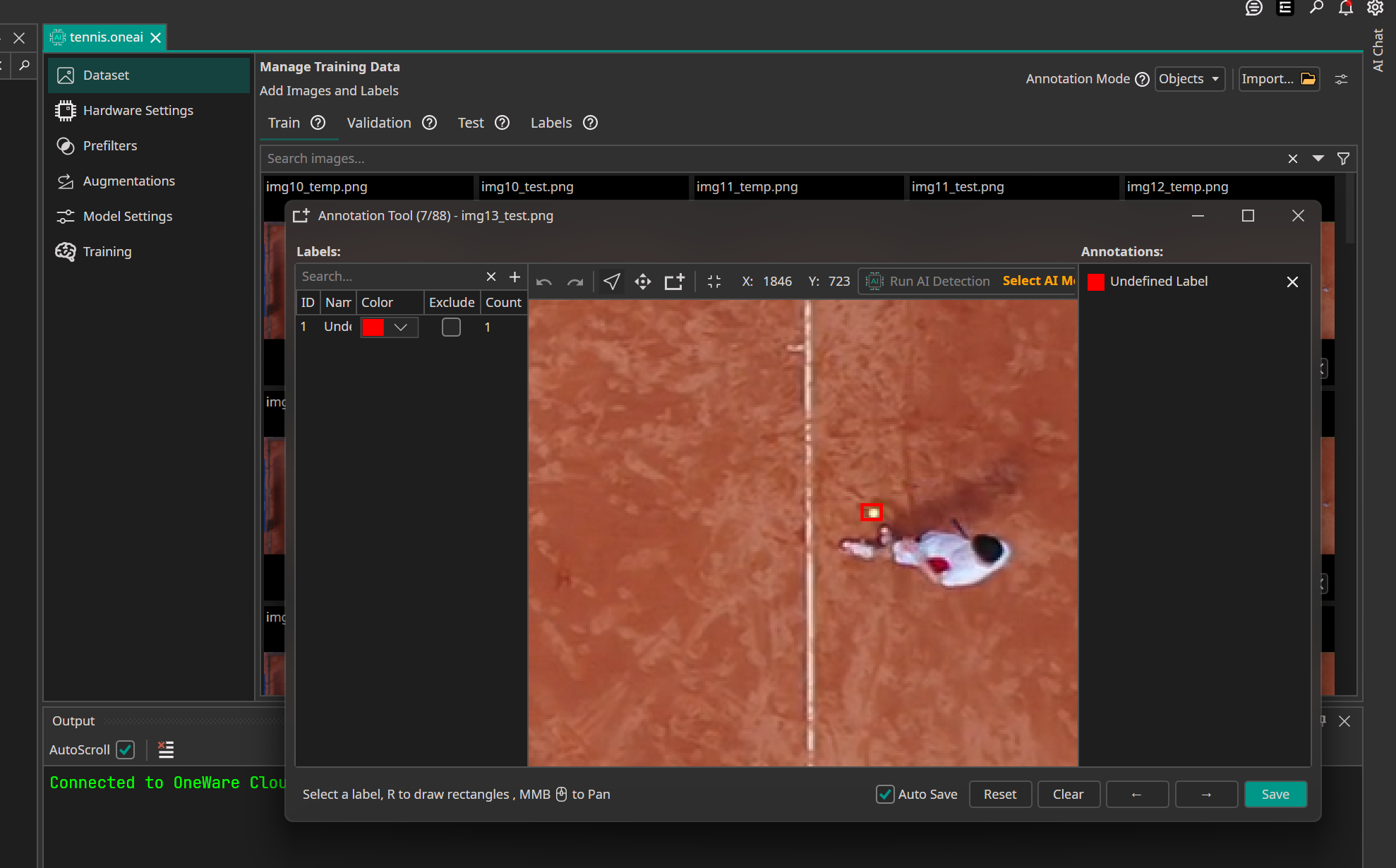
Using OneWare Studio, we utilized ONE AI to automatically generate a custom CNN specifically optimized for tracking. Instead of a generic object detection approach, we configured two key strategies:
- Motion Capture: The model receives two frames as input (the current frame and a second frame from 0.2 seconds earlier). This doubles the calculations in the high-resolution input layers but allows the AI to "understand" movement.
- Position Prediction: The predicted output layer only have one scale, so there are no double predictions and the model doesn't tries to predict bigger objects in the image that do not exist.
since pixel perfect pracing was not important for the task of following the ball, we set a lower minimum position precision. This results in a slightly more "jittery" prediction, but the model is significantly more robust with ball detections.
Results
The task-specific architecture generated by ONE AI proved to be superior in efficiency, speed, and detection rate.
| Metric | YOLO26n | ONE AI (Custom CNN) |
|---|---|---|
| Parameters | 2.4 Million | 0.04 Million |
| Computational Cost | 51.8 GOps | 3.6 GOps |
| Speed (Laptop CPU - 1 Core) | 2 FPS | 24 FPS |
| Correct Detections | 379 | 456 |
The FPS values were measured on a single core of a laptop CPU. This performance difference means the ONE AI model could run smoothly even on edge devices like a Raspberry Pi, whereas the YOLO model is too heavy for real-time CPU inference on high-resolution streams. The bandwidth required to move Full HD images to the model remains a bottleneck, but the specialized architecture maximizes the available throughput.
Even when training ONE AI on static images, it outperformed YOLO. However, combining the custom architecture with motion input yielded the best results.
Model Configuration
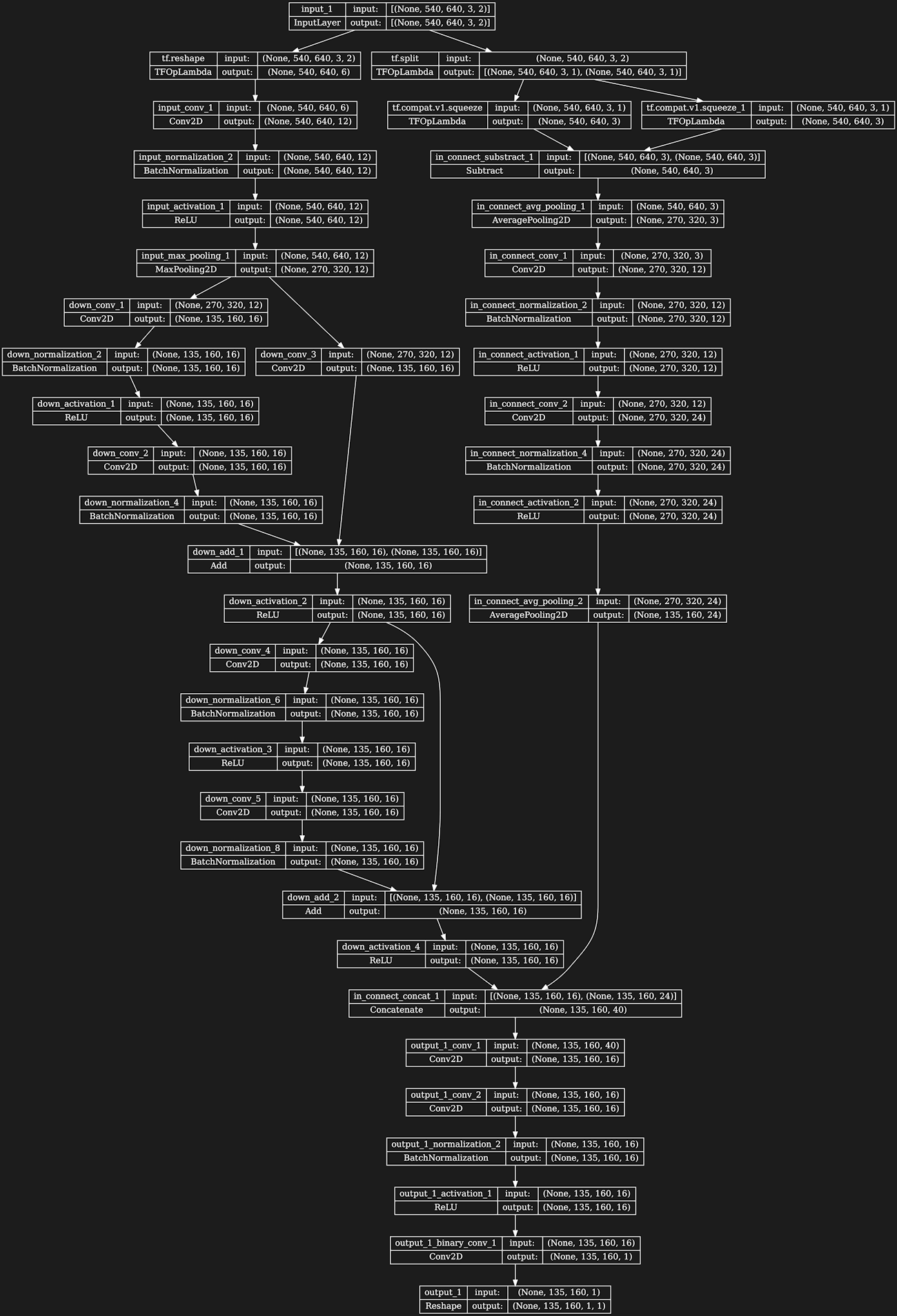
The visualization of the model architecture shows the separate processing branch for the image comparison and the overall compact structure.
The following settings were chosen to optimize the model for tracking small, fast-moving objects in high-resolution video streams.
Multiple Image Inputs
By identifying the ball's movement through time, we could significantly improve tracking reliability.
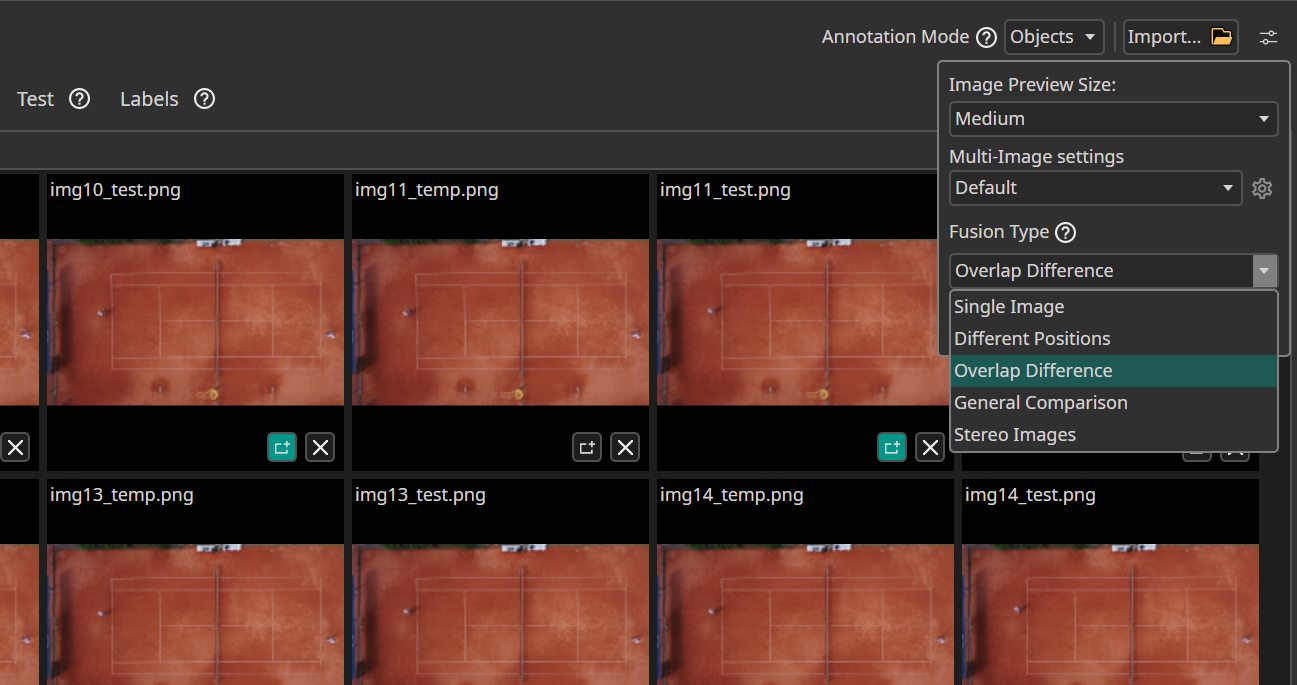
We configured the model to use Multiple Image Inputs. This setting enables the model to compare the current frame with previous frames (in this case, with a 0.2s delay) to better understand the object's movement and trajectory.
Data Processing
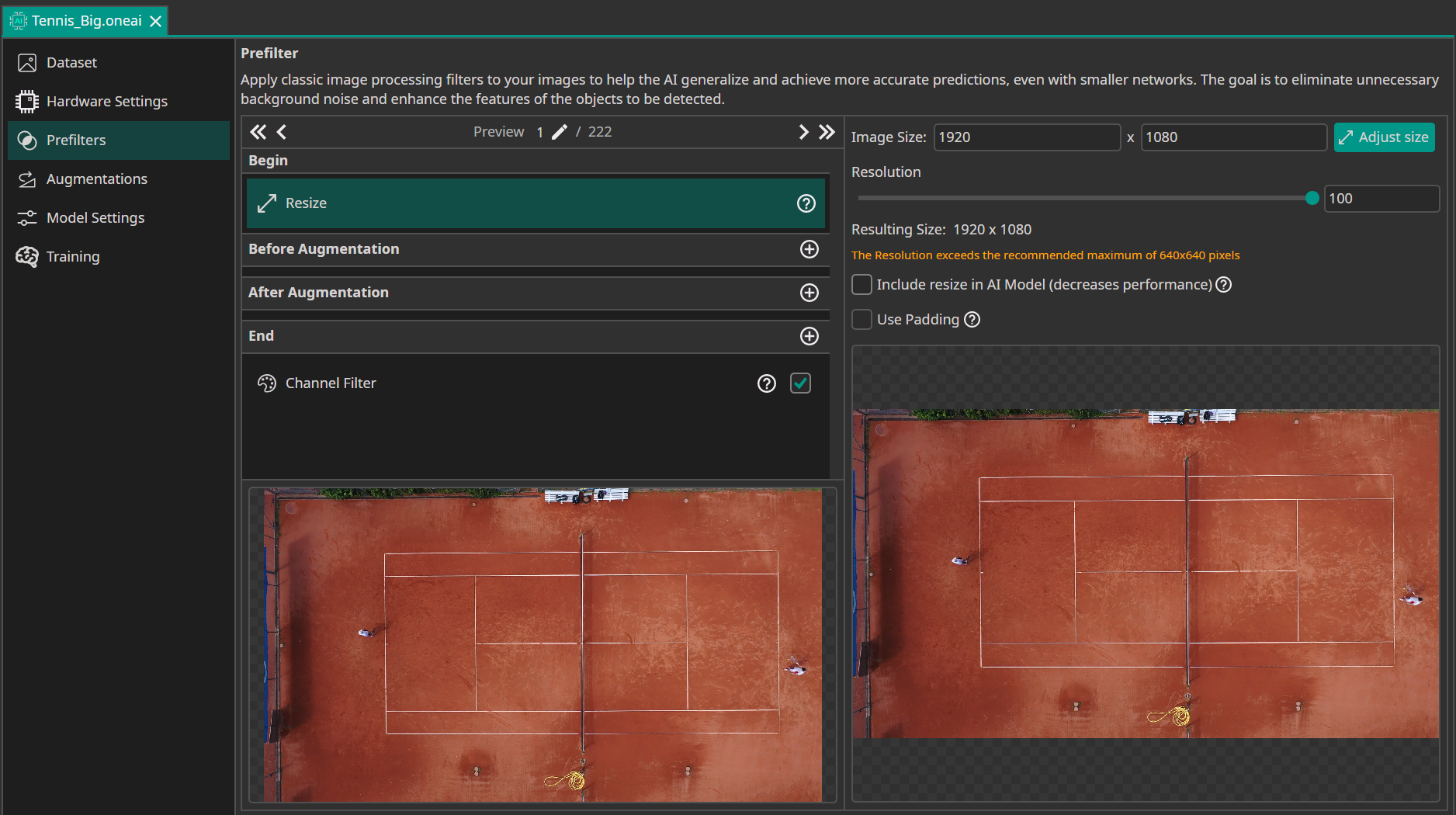
Unlike typical object detection tasks where images are often downscaled, we maintained the full 1920x1080 resolution. The tennis ball is extremely small in the frame, so downscaling would cause critical detail loss, making detection impossible.
We used standard augmentations (Flip, Color, Noise) to make the model robust against different lighting conditions and camera angles, which is especially important given the small dataset size.
Input Settings
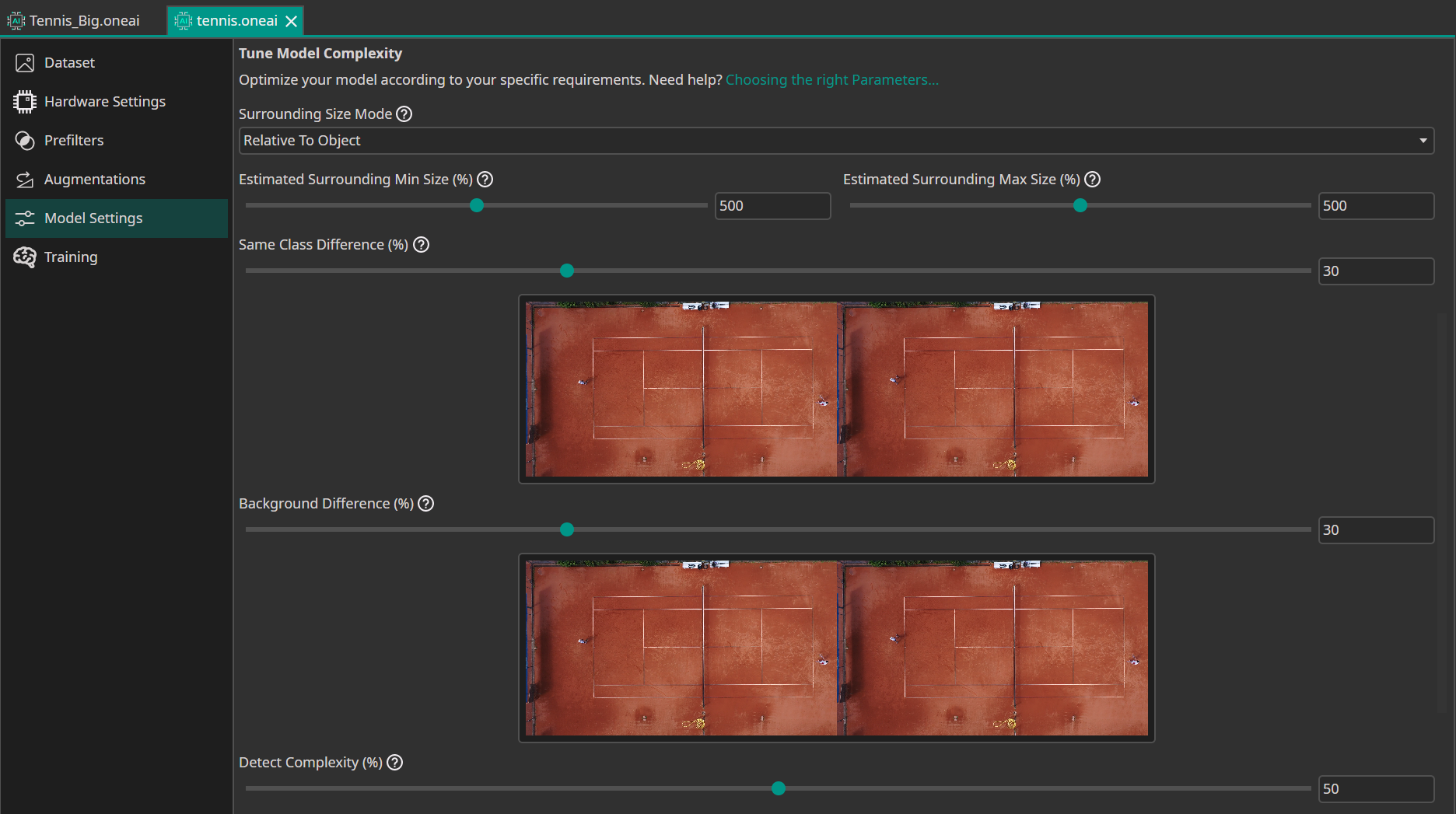
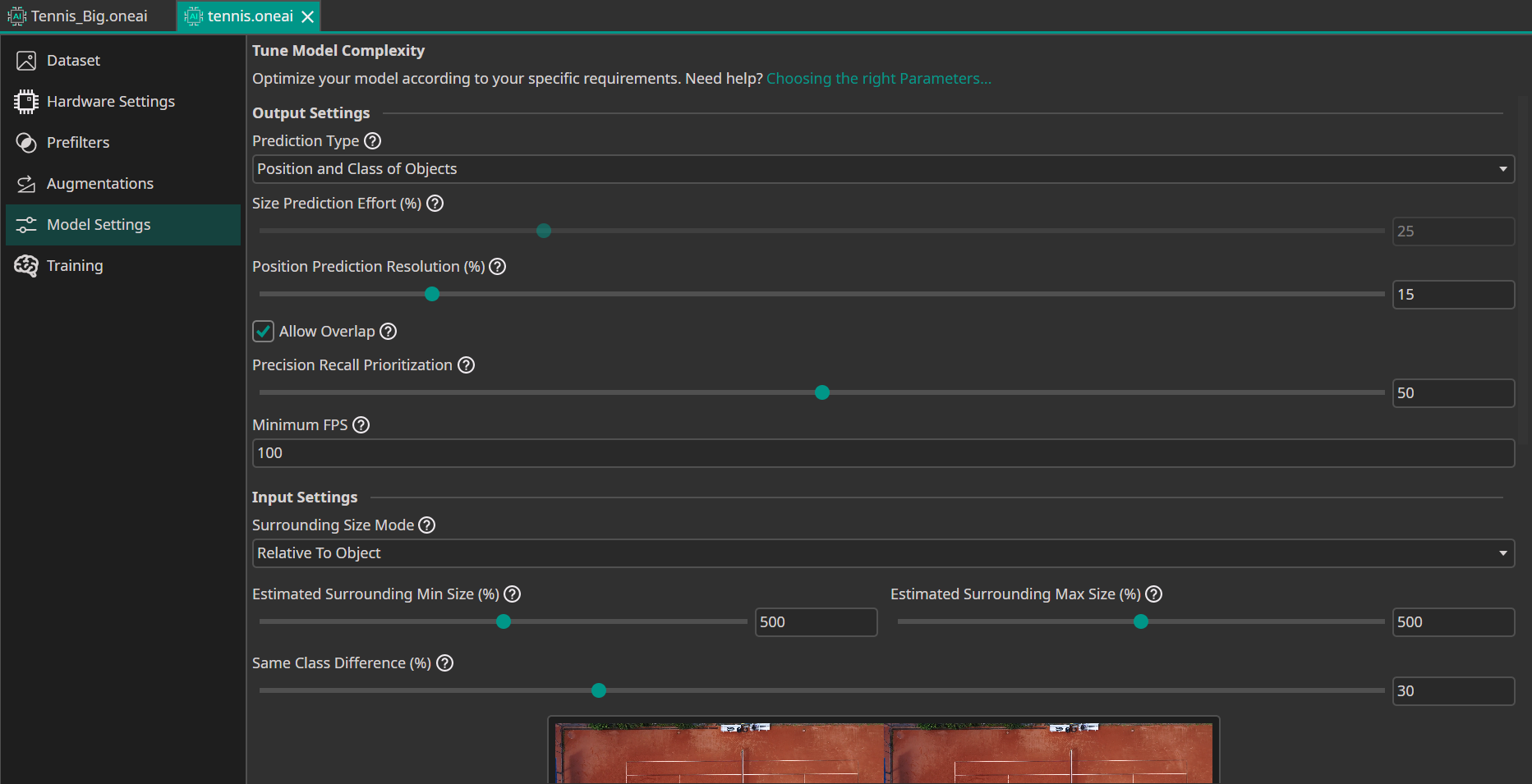
We set the Surrounding Area to 500% (5x the object size). This allows the model to see a large area around the tennis ball, which is crucial because the ball itself is very small and lacks distinctive features without context.
We also set the Object Complexity and Background Complexity to 30%, reflecting the relatively consistent environment (tennis court) and object appearance. However, we set the Detect Complexity to 50% because tracking a fast-moving ball is still a non-trivial task that requires the model to be attentive.
Model Settings
Using the "Position and Class of Objects" mode allowed us to predict the coordinates directly, which is more efficient for single-object tracking than bounding box detection.

Need Help? We're Here for You!
Christopher from our development team is ready to help with any questions about ONE AI usage, troubleshooting, or optimization. Don't hesitate to reach out!