Dev Update: AI-Assisted Labeling, Multiple Configurations, and Camera Tool Improvements


Hello and welcome to the July dev update!
We have just released our biggest update in months, packed with stability improvements, powerful new features, and advanced AI-assisted workflows.
It has never been easier to create high-quality, high-speed Vision AI models!
Labeling Assistance with Copilot
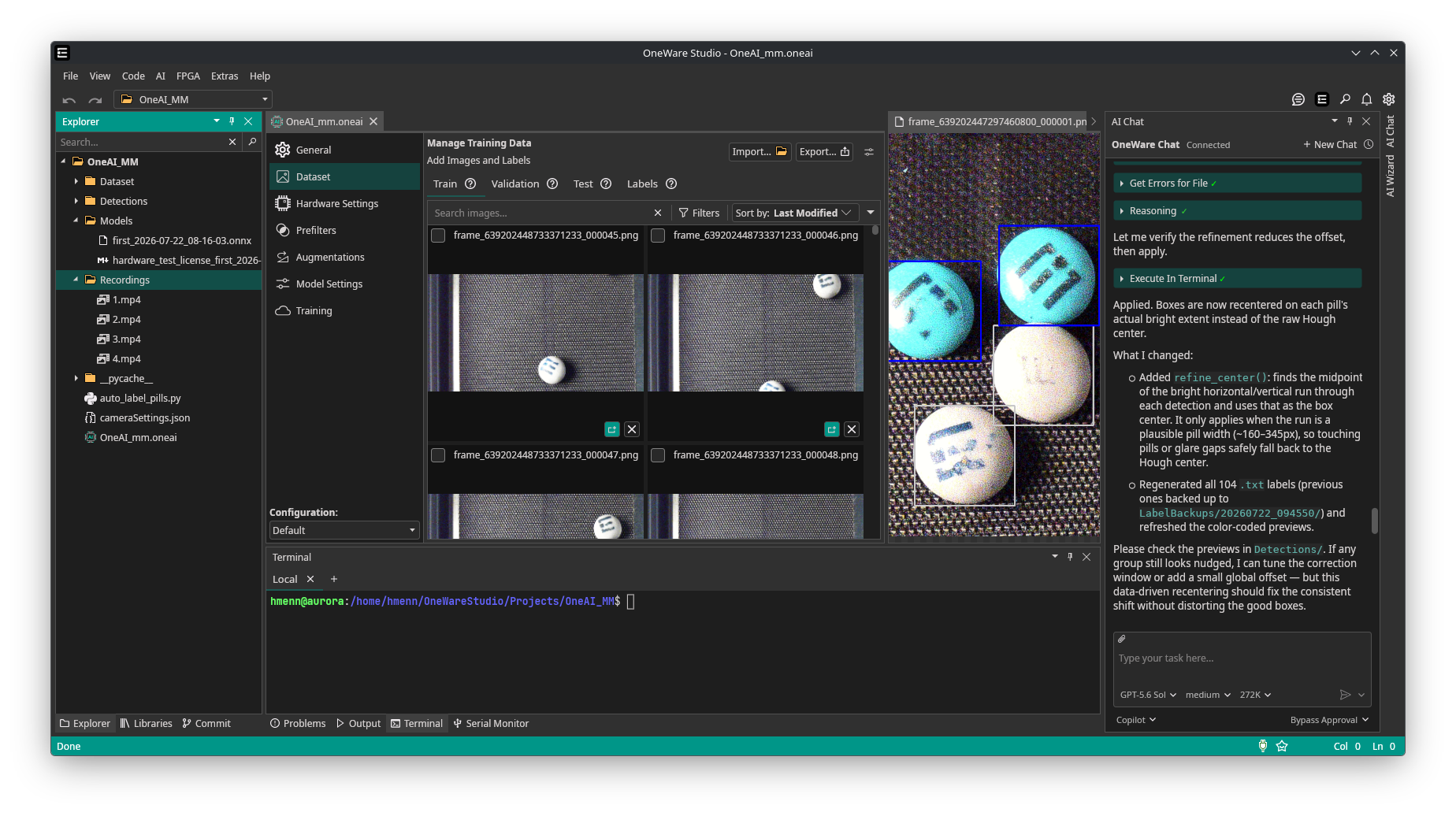
The Copilot integration in OneWare Studio is more versatile than many people realize. You can ask questions about your project and let Copilot use OpenCV to help label your dataset.
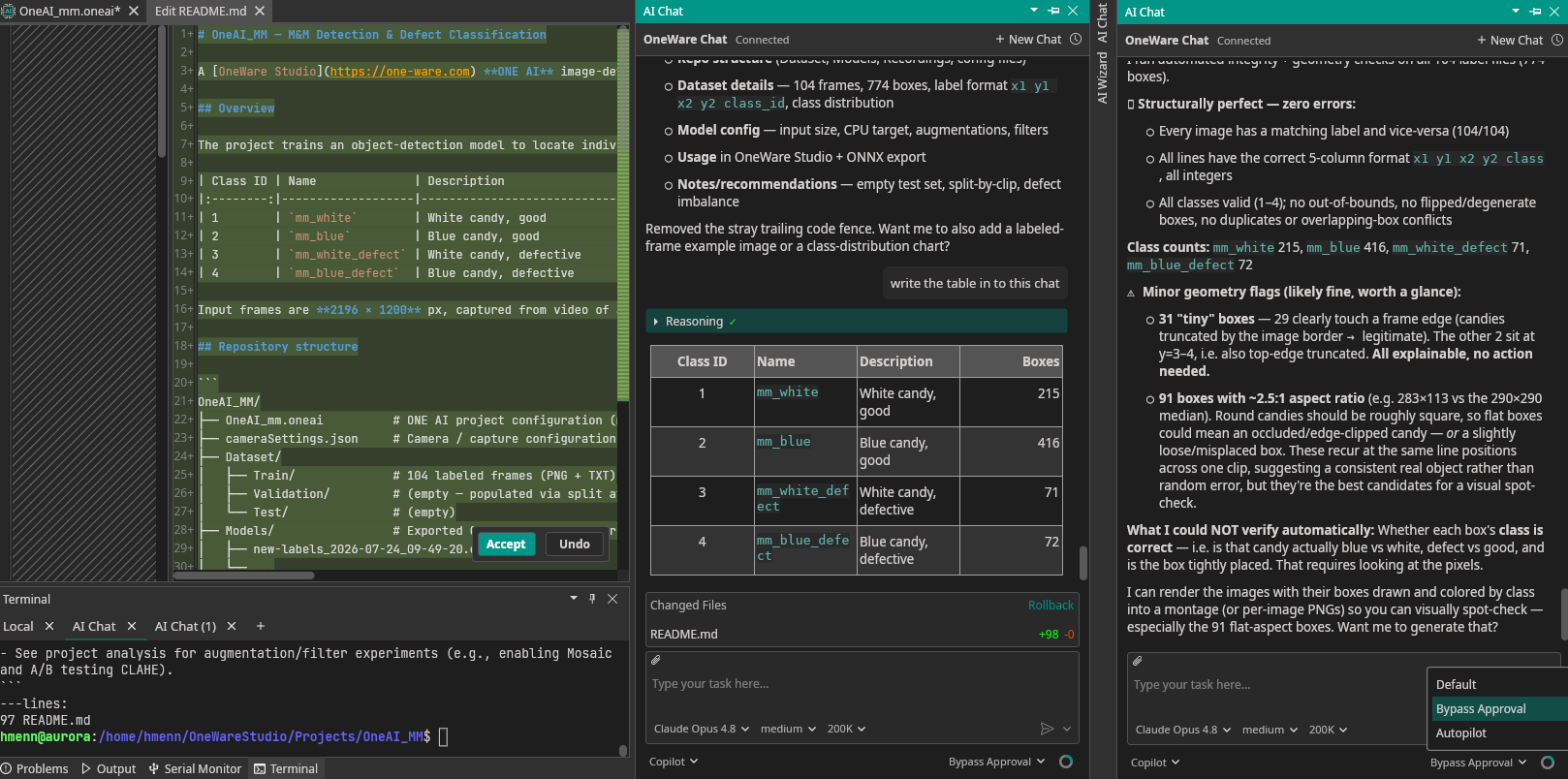
Advanced features such as message queuing, attachments, context-length selection, autopilot and more are now integrated into OneWare Studio.
Camera Tool Improvements
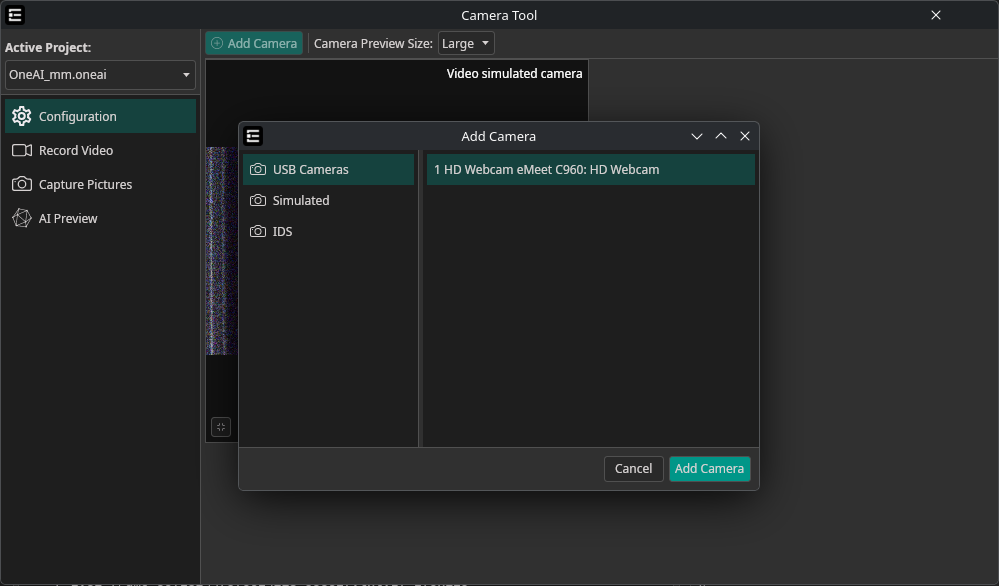
The Camera Tool now has a modular architecture, making it possible to integrate industrial cameras directly into OneWare Studio. Support for IDS cameras is already included. Is is now possible to use multiple cameras from different backends at the same time. For requests concerning additional camera manufacturers, contact us at info@one-ware.com.
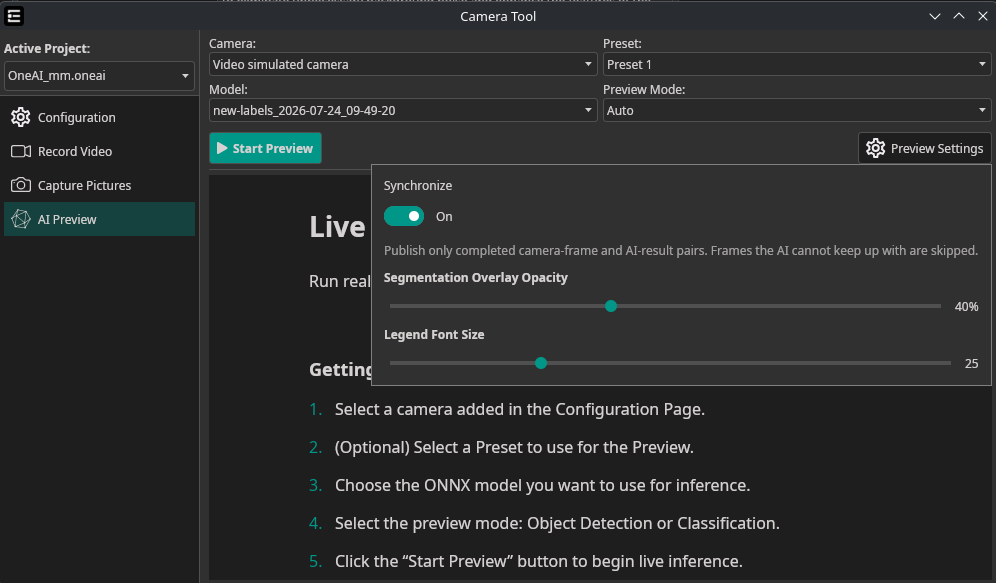
The new Synchronize preview setting keeps video frames perfectly aligned with their AI results. This setting is optional because applications using slower models may benefit from a smoother, asynchronous camera preview.
Improved Dataset Management
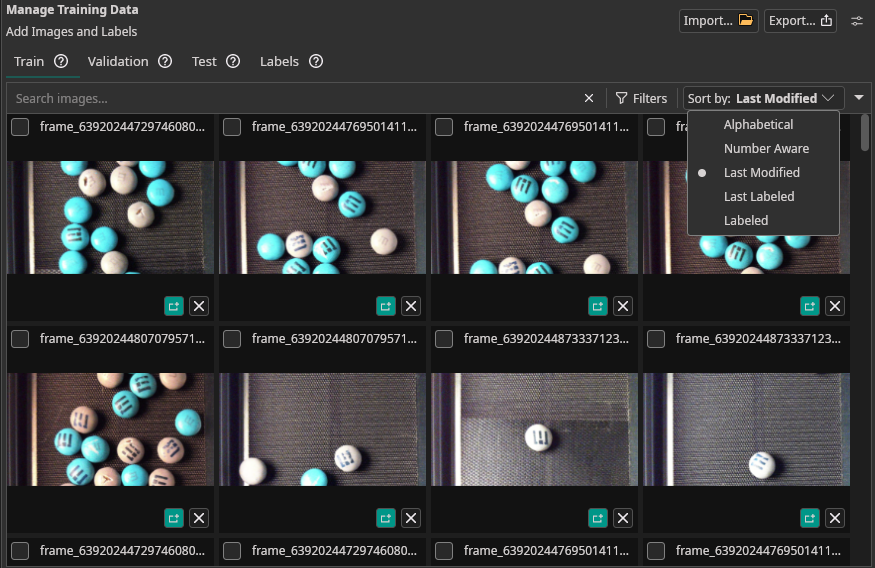
Managing large, high-resolution datasets is now faster and more intuitive. The improved dataset tools let you perform bulk actions, monitor updates in real time, and keep even extensive image collections organized.
Whether you are reviewing images, applying changes across an entire dataset, or tracking incoming data, the streamlined workflow helps you stay focused and in control.
Multiple Configurations in One Project
You can now create multiple configurations within the same ONE AI project. This makes it easy to test parameter variations or prepare models for different target hardware without duplicating the entire project.
Every project starts with a default configuration. Add a new configuration from the General tab, give it a name and description, and it becomes the active configuration.
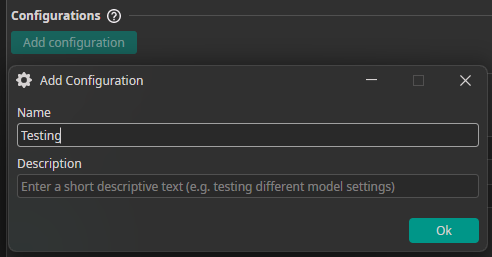
Settings changed in a custom configuration override their default values. ONE AI highlights each override, and you can reset it to the default value at any time.
Once your setup is ready, create, train, test, and export a separate ONE AI model for the active configuration. Learn more in the configuration documentation.
Multi-Image Projects
ONE AI models can now process several related images at once instead of analyzing every image independently. Multiple inputs provide the model with additional context and enable use cases such as:
- Viewing an object from different positions
- Comparing a test image with a reference image
- Combining different image types such as RGB, depth, or thermal data
- Detecting changes between aligned images
The new Multi-Image settings offer a Default mode for common setups and an Advanced mode for complete control over image types, camera positions, group mappings, and comparison behavior.
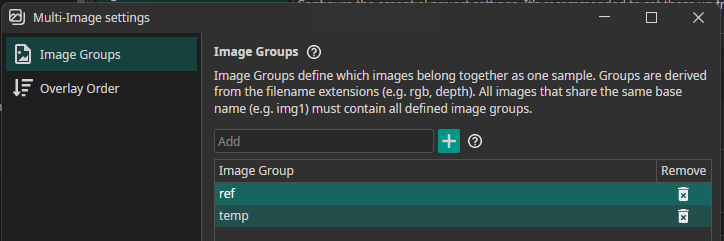
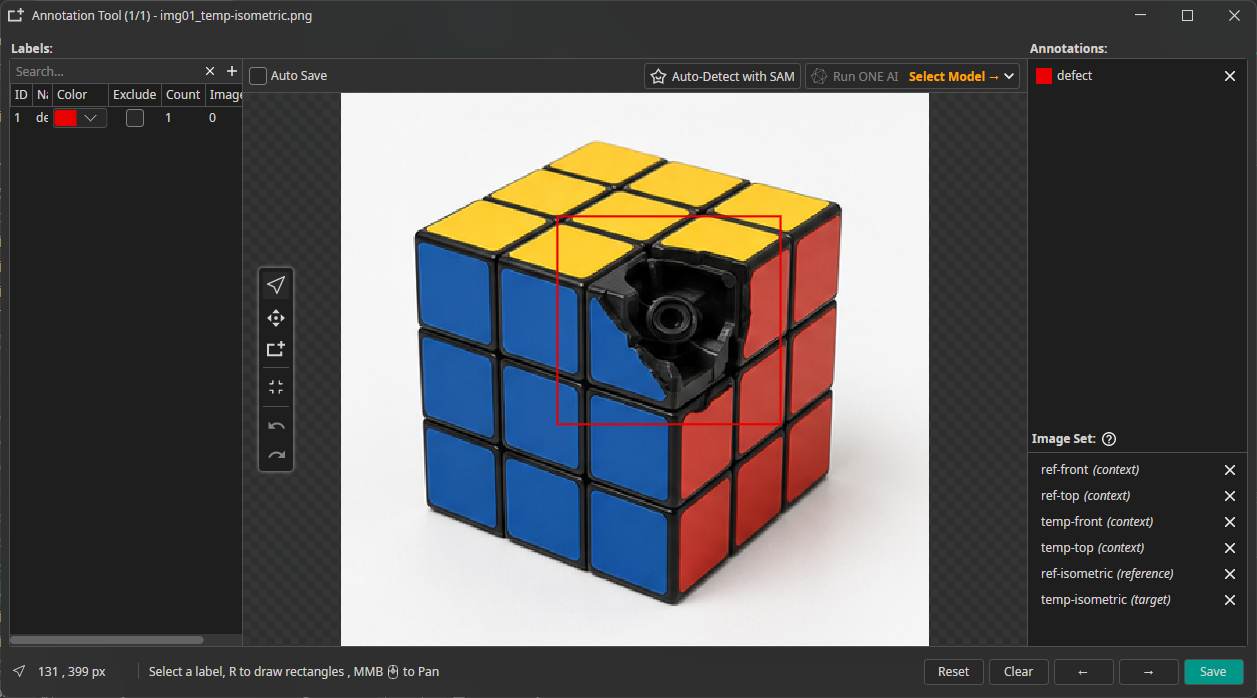
Images are organized into sets using filename suffixes such as _left, _right, _temp, or _ref. In the annotation tool, you can switch between the target, reference, and context images belonging to a set while annotating them just like a regular single-image dataset.
The new Groups tab also checks whether every set is complete and helps you spot missing images or image groups that have not been configured correctly.
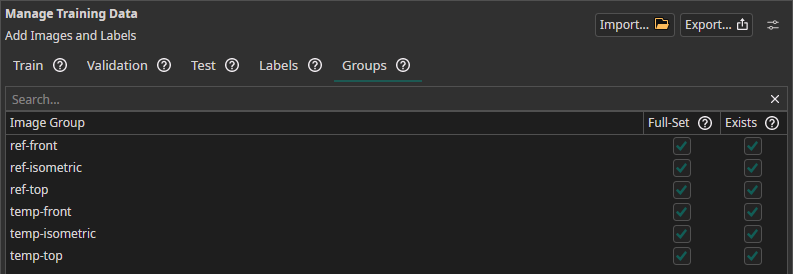
Read the Multi-Image configuration guide and dataset guide to get started.
Try It Out
This update makes it easier than ever to build, manage, and deploy powerful Vision AI solutions. From AI-assisted labeling and large-dataset workflows to industrial camera support, multiple configurations, and multi-image models.
Update OneWare Studio and the ONE AI extension to try the new features today. Start a new project, revisit an existing dataset, or explore one of our quick-start projects and let us know what you build!
As always, we would love to hear your feedback. Use the feedback tools in OneWare Studio or contact us at feedback@one-ware.com.