Multiple configurations
Configurations let you test different parameter variations within the same .oneai project. Use them whenever you need slightly different settings, such as targeting different hardware.
Configuration workflow
Add a custom configuration
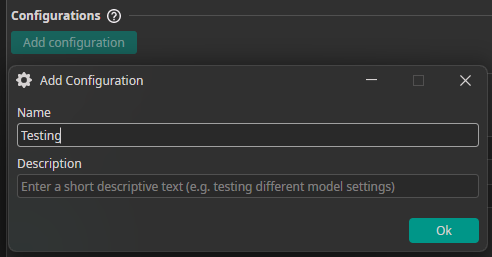
All projects begin with the default configuration. To add a custom configuration, navigate to the General tab and click Add configuration. Enter a name and description, then confirm the dialog:
Active configuration
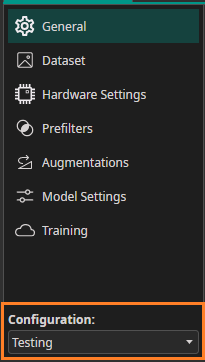
The added configuration will be automatically selected as the active one:
Override Properties
When a non-default configuration is active, changing any setting* creates an override of the default value. Overridden settings are marked with a red exclamation mark. Hover over it to reveal a reset icon that undoes the override.
*While most properties support per-configuration overrides, the label and group settings are global and unaffected by configuration changes.
Once a value is set and exclamation mark will be shown, the only way to remove the override is by clicking the exclamation mark. Setting the value back to the previous value will not remove the override.
ONE AI model
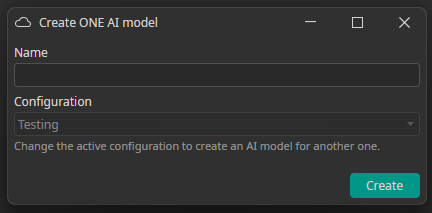
If you are ready with the setup, you can navigate to the Training tab and create a new ONE AI model corresponding to your configuration. Select your desired configuration as the active one and click Add model:
Afterwards you are ready to train, test and export your model with custom values that derives from your default project settings. Learn more about it in the Training & Export section.