Self-Hosted ONE AI Worker
Self-hosted workers are included in every Pro plan of your organization. One worker can be shared by everyone in the organization. Self-hosted jobs do not consume Compute Credits.
What is the Self-Hosted ONE AI Worker?
Run ONE AI jobs on your own machine or server instead of on ONE WARE Cloud workers.
The self-hosted worker handles training, testing, visualization, and export locally. This way you can train on your own hardware while keeping your dataset private.
What stays local
- Datasets
- Training artifacts
- Test results
- Exported models
What is sent to ONE WARE Cloud
- Job metadata and status
- Logs for live monitoring
- Configuration required to create and track jobs
- Metadata needed for model architecture prediction
The worker must be able to reach https://cloud.one-ware.com while a job is running. If it cannot report status for about 5 minutes, the job is cancelled.
Requirements
- Docker or Podman
- An NVIDIA GPU for the recommended setup
- NVIDIA Container Toolkit configured for your container runtime
- Network access to
https://cloud.one-ware.com - Persistent storage if job data should survive restarts
The container already includes the required CUDA libraries. On the host, you only need a working NVIDIA driver and NVIDIA container runtime support.
Supported NVIDIA GPUs
CUDA architectures 3.5, 5.0, 6.0, 7.0, 7.5, 8.0, and newer are supported.
In practice, this includes most modern NVIDIA GPUs, for example:
- GeForce RTX 20, 30, 40, and 50 series
- NVIDIA T4
- NVIDIA A2, A10, A30, and A100
- NVIDIA L4, L40, L40S
- NVIDIA H100 and H200
If you are unsure, check your GPU's compute capability in NVIDIA's CUDA GPU list.
Setup
Step 1 — Get your credentials
Go to cloud.one-ware.com, sign in, open your organization and select the Self-Hosted Worker tab. Only owners and admins of the organization see this tab. You need two things from this page.
A Docker pull token. The worker image is hosted on a private Azure Container Registry.
Click Generate token to get a docker login command, then run it:
docker login oneware.azurecr.io -u <username> -p <password>
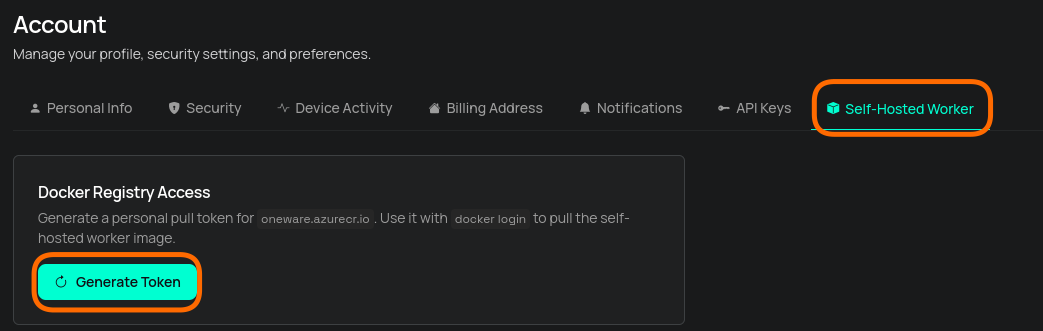
The organization has one pull token. It is valid for one year. Regenerate token issues a new password and invalidates the previous one immediately; images you already pulled keep working. The password is only shown once, so store it safely.
A worker access key. This is the organization's key that your worker will require on incoming
requests. Copy the WORKER_API_KEY=… line — you will paste it into your docker run command or
Compose file in Step 3.
ONE WARE Studio picks this key up automatically for every project of the organization, for every member who is signed in. Members only need the worker address — unless they connect to a worker started with another organization's key, which is covered in Using a worker of another organization.
Earlier versions used a personal key from Account → Self-Hosted Worker. That key no longer
works. Set WORKER_API_KEY to the organization's key, pull the latest image (it uses the new
file sync) and restart the worker.
Step 2 — Pull the image
docker pull oneware.azurecr.io/oneware-worker-selfhost:latest
Step 3 — First Start
Use this when you want to run the worker in the foreground and watch the logs directly:
docker run \
  --name oneware-worker-selfhost \
  --gpus all \
  -p 127.0.0.1:5000:5000 \
  -e WORKER_API_KEY=<your-worker-access-key> \
  -v oneware-selfhost-data:/app/selfhost_projects \
  oneware.azurecr.io/oneware-worker-selfhost:latest
On startup the worker prints auth: enabled when a key is configured. If you leave
WORKER_API_KEY out, the worker still runs but accepts every request that reaches it — it will
warn you about that in the log. See Security below.
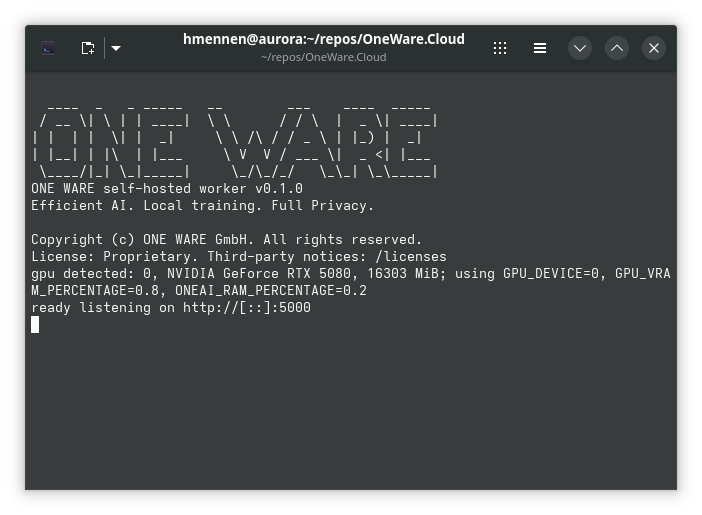
If everything is working correctly, the worker will detect the GPU and print it in the logs.
Docker Compose
It is recommended to use Docker Compose to keep the configuration in one place.
services:
  oneware-worker-selfhost:
    image: oneware.azurecr.io/oneware-worker-selfhost:latest
    container_name: oneware-worker-selfhost
    restart: unless-stopped
    environment:
      # Worker access key from Organization → Self-Hosted Worker on ONE WARE Cloud.
      WORKER_API_KEY: ${WORKER_API_KEY}
    ports:
      # Bind to the address the ONE AI extension reaches the worker on.
      - "127.0.0.1:5000:5000"
    volumes:
      - oneware-selfhost-data:/app/selfhost_projects
    cap_drop:
      - ALL
    security_opt:
      - no-new-privileges:true
    deploy:
      resources:
        reservations:
          devices:
            - driver: nvidia
              count: all
              capabilities: [gpu]

volumes:
  oneware-selfhost-data:
Put the key in a .env file next to your docker-compose.yml so it stays out of version control:
WORKER_API_KEY=owk_…
Configuration
- Persistent job data:
/app/selfhost_projects - Temporary workspace:
/app/selfhost_workspace
Mount /app/selfhost_projects as a volume if uploads, models, exports, and test results should survive container restarts. The workspace directory is cleaned up automatically after jobs finish.
Runtime behavior
On startup, the worker checks whether an NVIDIA GPU is available.
If a GPU is found, the default limits are:
GPU_DEVICE=0GPU_VRAM_PERCENTAGE=0.9ONEAI_RAM_PERCENTAGE=0.5
If no GPU is available, the worker runs in CPU mode.
The worker processes one job at a time. Additional jobs wait in a queue.
Environment variables
WORKER_API_KEY: worker access key from ONE WARE Cloud (see Security)GPU_DEVICE: GPU index to useGPU_VRAM_PERCENTAGE: maximum VRAM usageONEAI_RAM_PERCENTAGE: maximum system RAM usage
These variables can be used to control which resources the worker uses. You can also enforce resource limits with Docker itself.
Security
Self-hosting means your datasets never leave your infrastructure. It also means the worker runs inside a boundary you own, so a few things are worth getting right. None of it is complicated.
Access is controlled by the worker access key
The worker only accepts requests that present the access key of your organization
(WORKER_API_KEY). Studio fetches the same key automatically for projects of the organization, so
the pair works without any manual configuration on the Studio side. To let someone outside the
organization use your worker, give them that key and have them enter it in Studio — see
Using a worker of another organization.
Rotate the key at any time from Organization → Self-Hosted Worker → Rotate key. The badge shows
the current key version. Rotation invalidates the key the cloud hands out, so Studio picks up the
new one on the next sign-in. The worker itself keeps
accepting the old key until you update WORKER_API_KEY and restart it — so after rotating, update
your worker promptly. If you are rotating because a key leaked, restart the worker with the new key
before considering the leak contained.
The worker still starts, prints an auth: disabled warning, and accepts every request that reaches
it. This exists so that existing deployments keep working after an upgrade. Set a key. A future
worker release will require one.
The /health endpoint stays open so container orchestrators can probe it. It returns no data about
your projects.
Recommended deployment
- Bind to the interface you actually use.
-p 127.0.0.1:5000:5000for a local worker, or the private address Studio reaches it on.-p 5000:5000binds to every interface, which on a host with a public IP means the internet. - Use a reverse proxy with TLS for remote access. The worker speaks plain HTTP, which is fine on a LAN or over a VPN. If traffic crosses an untrusted network, terminate TLS in front of it.
- Restrict outbound traffic to what the worker needs:
https://cloud.one-ware.com,oneware.azurecr.ioand DNS. It does not need general internet access. - One worker per organization. The worker has no tenant isolation — every job shares the same filesystem paths and GPU context. Run a separate deployment (and organization) for each group of users who should not see each other's datasets and models.
Your data
- Job data lives in
/app/selfhost_projectsand is not encrypted by the worker. If it is sensitive, enable full-disk or volume encryption on the host. - Job data persists until you delete it. Define your own retention schedule for that directory.
- Worker logs contain file paths, job identifiers and model metadata — treat them as internal.
Verify what you run
Pull images only from oneware.azurecr.io, and pin an explicit version tag in production (for
example oneware-worker-selfhost:1.6.14.172) rather than latest, so you always know what you are
running.
Images are signed at publication with cosign keyless signing, by digest — so a signature always attests to specific content rather than to a tag that could be repointed later. There is no public key to distribute or rotate:
cosign verify \
  --certificate-oidc-issuer https://token.actions.githubusercontent.com \
  --certificate-identity-regexp '^https://github\.com/one-ware/OneWare\.Cloud/\.github/workflows/publish-selfhost-worker\.yml@' \
  oneware.azurecr.io/oneware-worker-selfhost:<version>
If verification fails, the image was not published by ONE WARE's release pipeline. Do not run it — contact security@one-ware.com.
A software bill of materials (SBOM) is produced for every release, covering the .NET packages, the base image, the embedded Python/ONE AI environment and the CUDA/ML libraries. Request it from security@one-ware.com if you need it for your own vulnerability management.
Updates
Security updates ship as updated container images — the worker does not update itself. ONE WARE publishes security advisories, notifies known deployment contacts directly for High and Critical issues, and provides security updates free of charge during the support period.
Pull and redeploy promptly after a security release. Suggested targets: Critical within 72 hours, High within 7 days. Give us a monitored contact address so direct notification can reach you.
Hardening checklist for production deployments
The Compose example above already covers most of this.
-
WORKER_API_KEYis set, and the key is not committed to version control. - Port 5000 is bound to a private interface, not
0.0.0.0. - TLS terminates in front of the worker for any traffic leaving the local network.
- Outbound traffic is restricted to ONE WARE Cloud, the registry and DNS.
- The worker serves a single organization / trust domain.
- The container runs as the built-in unprivileged user
10001, not root, and not--privileged. Bind-mounted directories are owned by10001:10001(sudo chown -R 10001:10001 /path/to/worker-data). -
cap_drop: ALLandno-new-privileges:trueare set. - GPU access is scoped to the intended devices (
device_ids: ["0"]instead ofcount: all). - Memory and CPU limits are set on the container.
- Host disk or volume encryption is enabled if job data is sensitive.
- A specific image version — ideally a digest — is pinned, and the deployed version is recorded.
- Host OS, container runtime and GPU driver are on a patch schedule.
Reporting a security problem
Report suspected vulnerabilities to security@one-ware.com with the subject Security. Please do not open a public issue. See Product Security for the full policy.
If you believe a worker you operate has been compromised, isolate it from the network first and preserve the container and host logs, then contact us — after a redeploy those logs are usually the only evidence left.
Configure the ONE AI Extension
Set the self-hosted worker address to:
http://<host>:5000
Replace <host> with the machine name or IP address that the extension can reach.
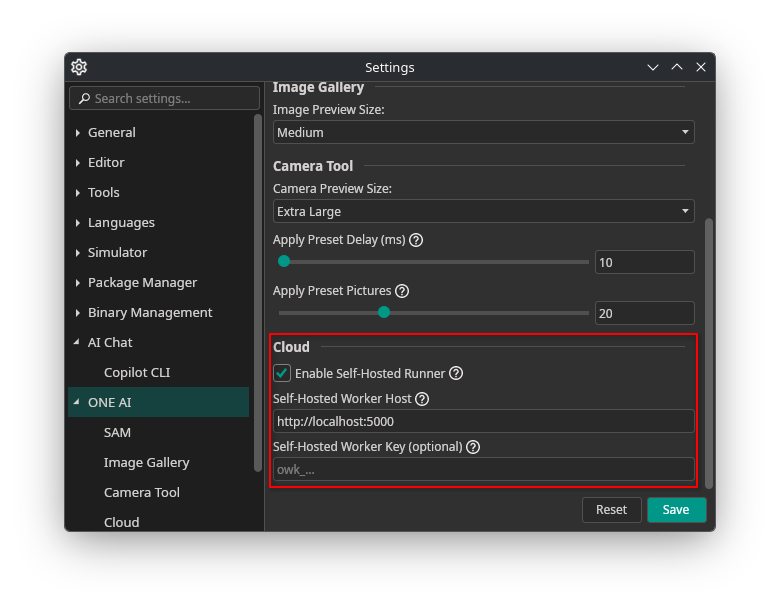
Leave Self-Hosted Worker Key empty. Studio fetches the key of the organization that owns the
project while you are signed in, so a worker started with your organization's WORKER_API_KEY just
works for every member.
Using a worker of another organization
If you connect to a worker that was started with a different organization's key — for example one
run by a partner company — Studio cannot derive that key, and every job will fail with a 401.
Ask whoever runs the worker for the WORKER_API_KEY they configured, and paste it into
Self-Hosted Worker Key under ONE AI → Cloud:
A value here overrides the key from your organization for every request to the worker. Clear the field to go back to using your organization's key.
The person running the worker is sharing an access key, not access to their organization. The key only unlocks the worker's API — it grants nothing on ONE WARE Cloud. Treat it like any other shared credential, and expect it to change whenever they rotate it.
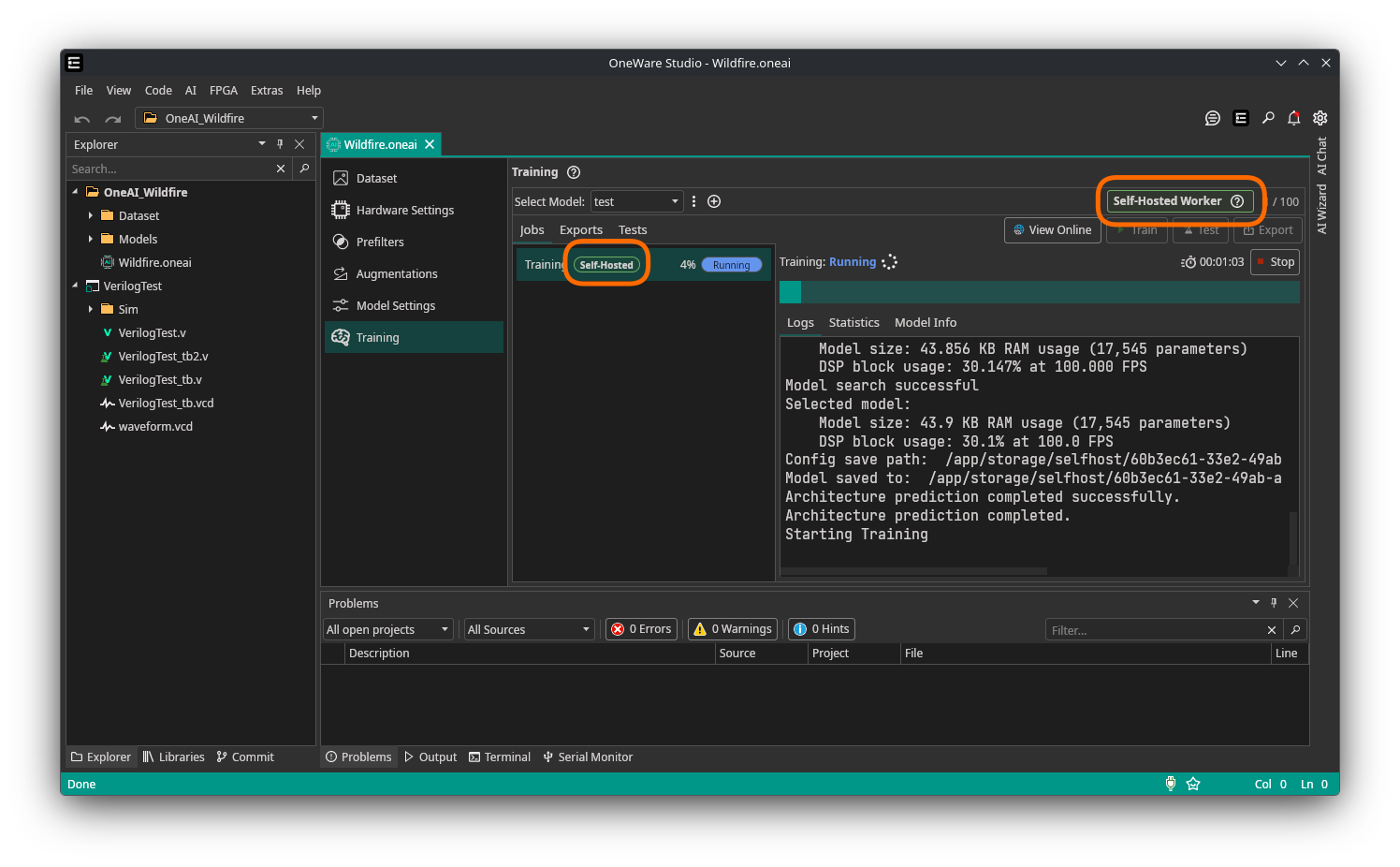
The cloud page will now show indications that self-hosted mode is active and which jobs are running in that mode.
Only allow self-hosted workers
Owners and admins can require that no project data of the organization is stored on ONE WARE servers. Open your organization → Settings → Policies and enable Only use self-hosted workers. This requires a plan that includes self-hosted workers.
While the policy is active:
- ONE WARE Cloud refuses uploads of project files (Sync to Cloud, web uploads) and jobs on ONE WARE Cloud workers for all projects of the organization.
- Training, testing and export run only on self-hosted workers.
- Files that are already in the cloud can still be downloaded and deleted, so you can clean them up.
- The project page shows a Self-hosted only badge.