Input Settings
The Model Settings tab allows you to tune the model generation to your individual needs. You can specify what parameters you want to predict, the required precision and how fast your model needs to be. For example, if the size of your objects is known, you can tell ONE AI to only predict object positions to save resources. To achieve the best results, you also need to make some estimates about your task, like specifying the expected size of objects or the overall complexity of the task.
We have a guide on choosing the right parameters, which explains the settings using different example tasks. If you're unsure whether your settings are correct, this is a great place to learn more.
Input Settings
To achieve the best results, you need to provide some additional information about your task. ONE AI will use this information to tailor the generated model to your individual use case.
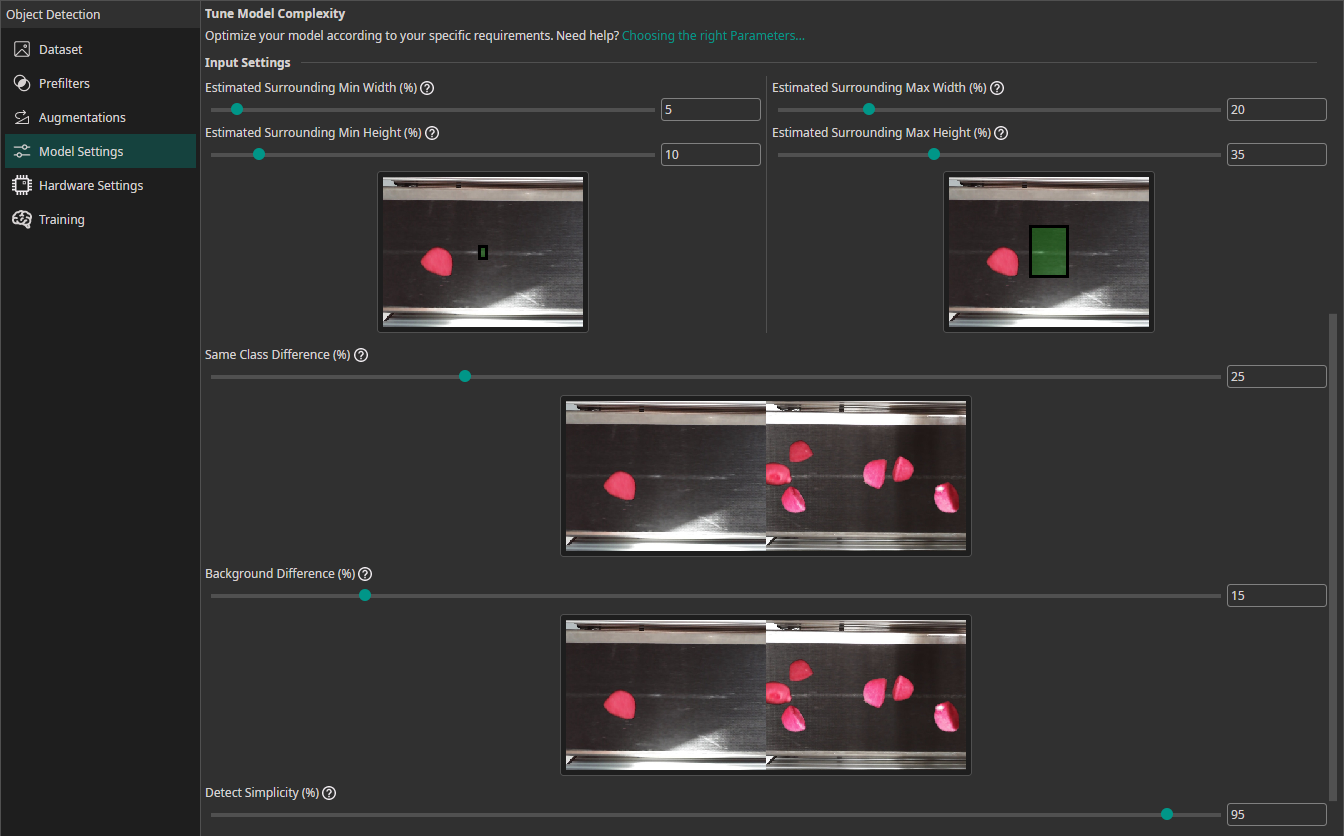
Surrounding Size Mode(advanced): Choose how to estimate the surrounding area needed for accurate detection:Relative To Object: The surrounding area is calculated based on the size of the object itself. Useful when objects are well-separated.Relative To Image: The surrounding area is determined as a percentage of the entire image. Useful when objects are close together or context is important.
Estimated Surrounding Min Size (%)(when Relative To Object): Estimate the minimum surrounding area relative to the object size required to detect the smallest object correctly.Estimated Surrounding Max Size (%)(when Relative To Object): Estimate the maximum surrounding area relative to the object size required to detect the largest object correctly.Estimated Surrounding Min Width (%)(when Relative To Image): Estimate the minimum width of the area required to detect the smallest object correctly.Estimated Surrounding Min Height (%)(when Relative To Image): Estimate the minimum height of the area required to detect the smallest objects.Estimated Surrounding Max Width (%)(when Relative To Image): Estimate the width of the area required to detect the largest objects.Estimated Surrounding Max Height (%)(when Relative To Image): Estimate the height of the area required to detect the largest objects.Same Class Difference (%): Estimate how much objects within the same class can vary. 10% means minimal variation (e.g. the same label under different lighting), 85% means significant variation (e.g. different label shapes and prints).Background Difference (%): Estimate how much the background varies after applying prefilters. 0% for uniform backgrounds, 15% for slight variation (same conveyor belt), 100% for entirely different locations.Detect Complexity (%): Estimate how easy it is to detect the object class. 5% for simple tasks (black circles on white background), 60% for moderate tasks (scratches on a surface), 95% for complex tasks (differentiating cat breeds).
Note that these parameters apply to the preprocessed and augmented images. If you use size augmentations, for example, make sure the estimated surrounding values still match the resulting range of image sizes.
Check out our guide on choosing the right parameters.
For Classification Tasks
If you are training a classification model, you need to provide some additional information:
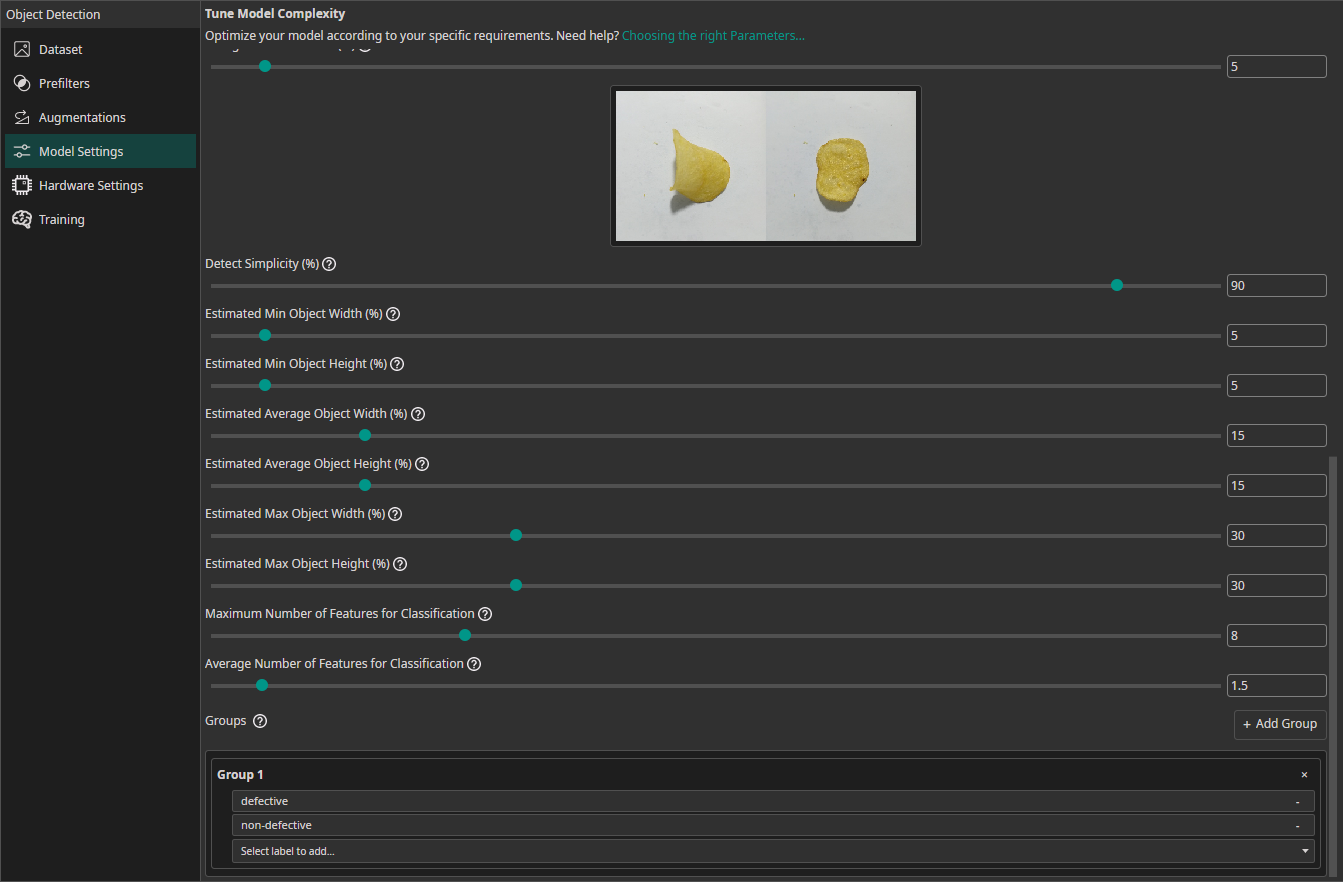
Estimated Min Object Width (%): Estimate the width of the smallest area that the model needs to analyze to make the correct decision.Estimated Min Object Height (%): Estimate the height of the smallest area relevant for the classification.Estimated Average Object Width (%): Estimate the width of the average area relevant for the classification.Estimated Average Object Height (%): Estimate the height of the average area relevant for the classification.Estimated Max Object Width (%): Estimate the width of the largest area relevant for the classification.Estimated Max Object Height (%): Estimate the height of the largest area relevant for the classification.Maximum Number of Features for Classification: This setting describes the maximum number of image features that may be relevant for a classification task.Average Number of Features for Classification: The average number of relevant features used for the classification.Groups(also available for object detection tasks): This setting is intended for advanced users. We recommend leaving all classes in one group unless you know what you are doing. By splitting the classes into multiple groups, you can divide your task onto multiple sub-models. ONE AI will generate an individual sub-model for each group that only predicts the classes that belong to that group. The sub-models are then joined to create a single unified model. This approach is practical if you have objects with significantly different sizes, e.g. long scratches and small nicks. By dividing the task onto sub-models, one model can focus on the large defects while the other focuses on the tiny defects.

Need Help? We're Here for You!
Christopher from our development team is ready to help with any questions about ONE AI usage, troubleshooting, or optimization. Don't hesitate to reach out!