Capturing
Capturing data
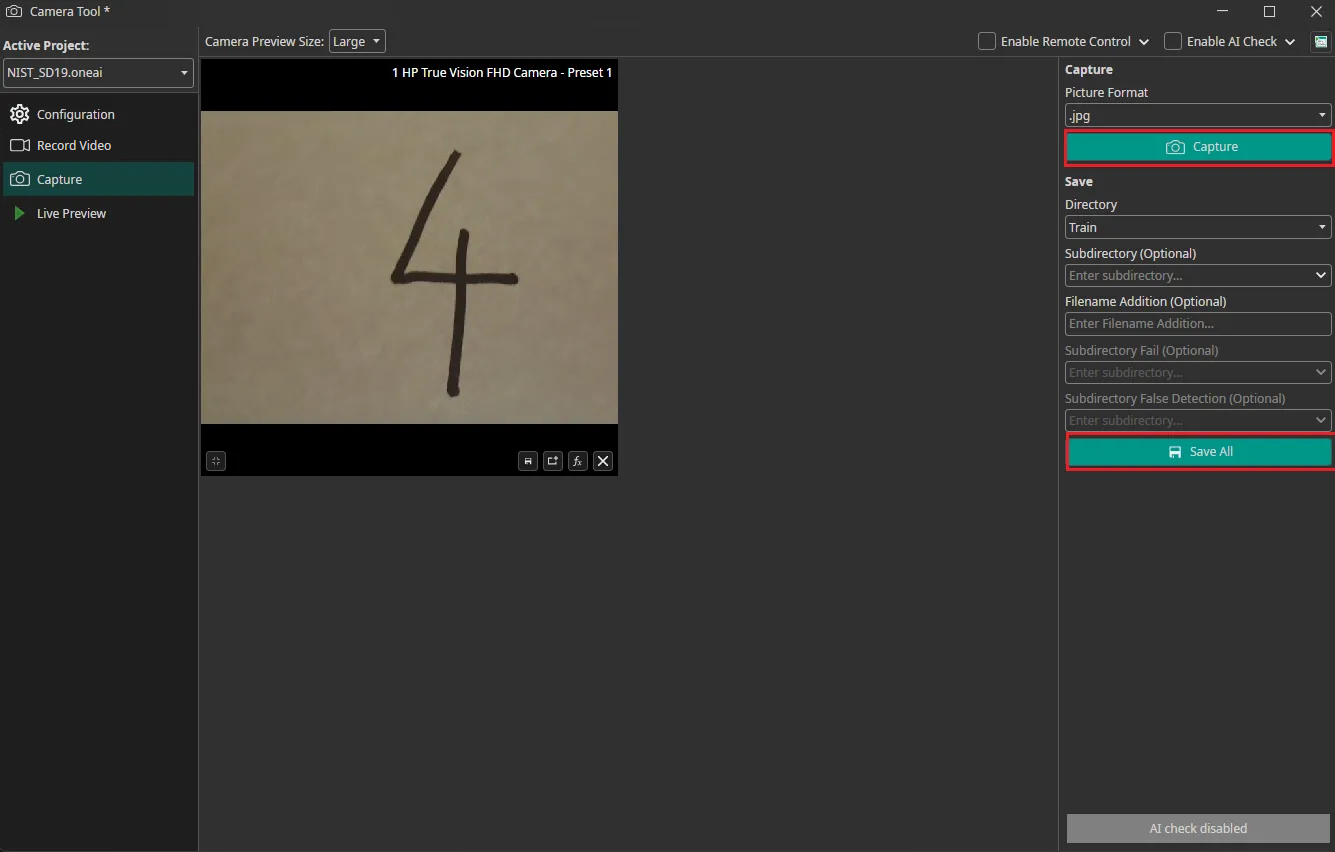
To record images, you need to go to the Capture tab. You can record images by clicking on the Capture Button with camera icon. This records an image from all cameras simultaneously and updates the preview showing thumbnail previews before saving. You need to select whether you want to add the image to the train, test or validation directory and click on the save icon to save them. The images are automatically named with the timestamp they were captured at, so you don't need to enter names manually. You have the option to add the images to a subdirectory and to add a suffix to the filename. You can also use "Save All" to save all captured images in the session at once.
Using an AI model to generate labels
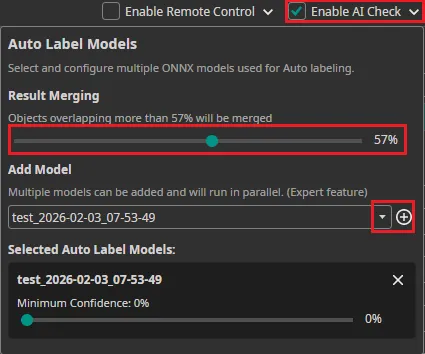
You can use an existing AI model to label the captured images as you record them. To do so, you need to export the trained model as an ONNX model. After downloading it, the model becomes available in OneWare Studio automatically. Next, you need to activate Enable AI Check in the top-right corner and select the model you want to use. After adding one model (or multiple models) with the plus icon, you can select the Minimum Confidence that the model needs to have in a prediction for it to be used. The Result Merging slider sets the threshold that determines if new predictions from the model are shown in case there is an overlapping already existing bounding box. During capture, AI predictions are executed automatically on each image and written as annotation files (.txt) alongside the images.
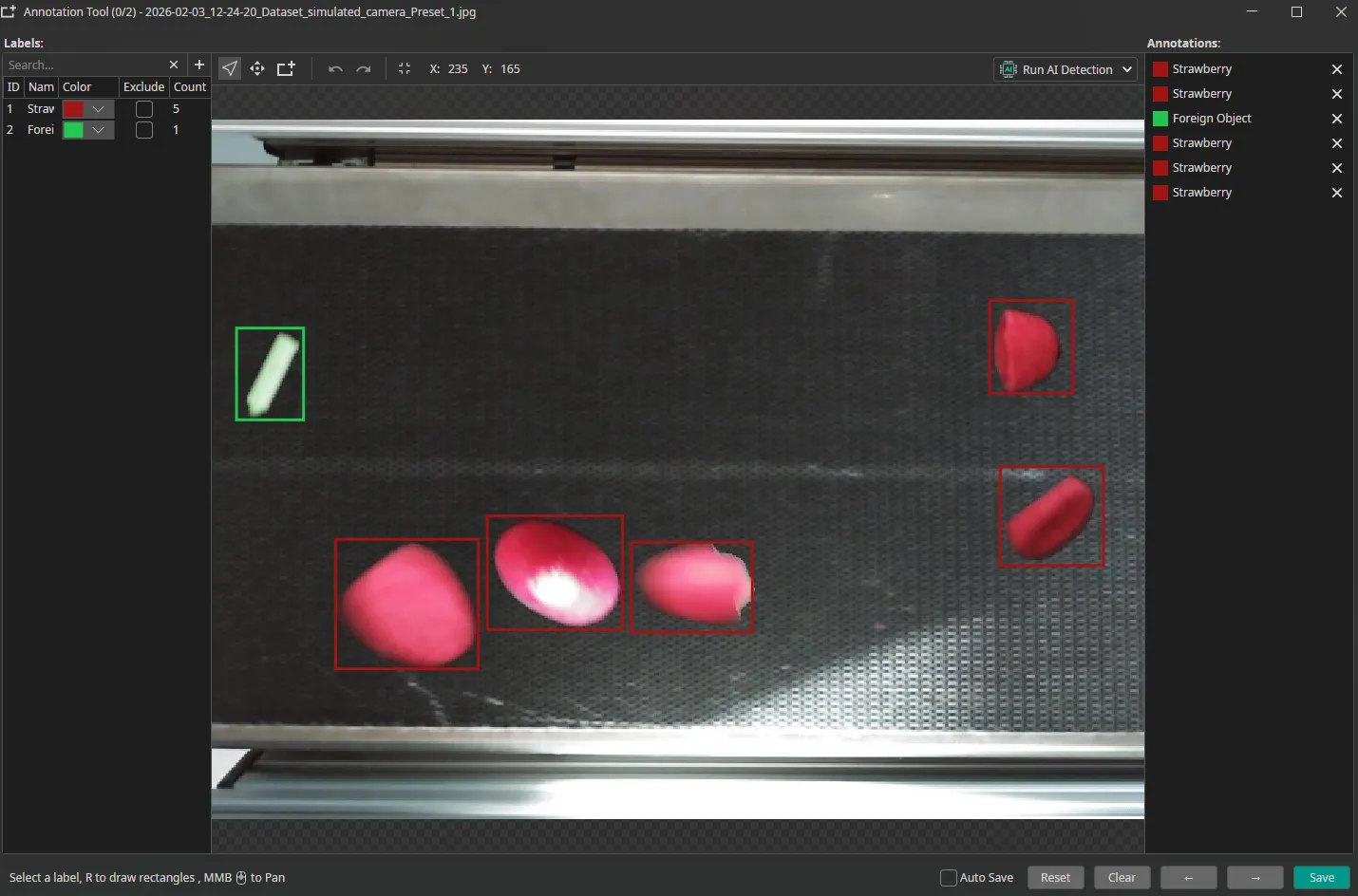
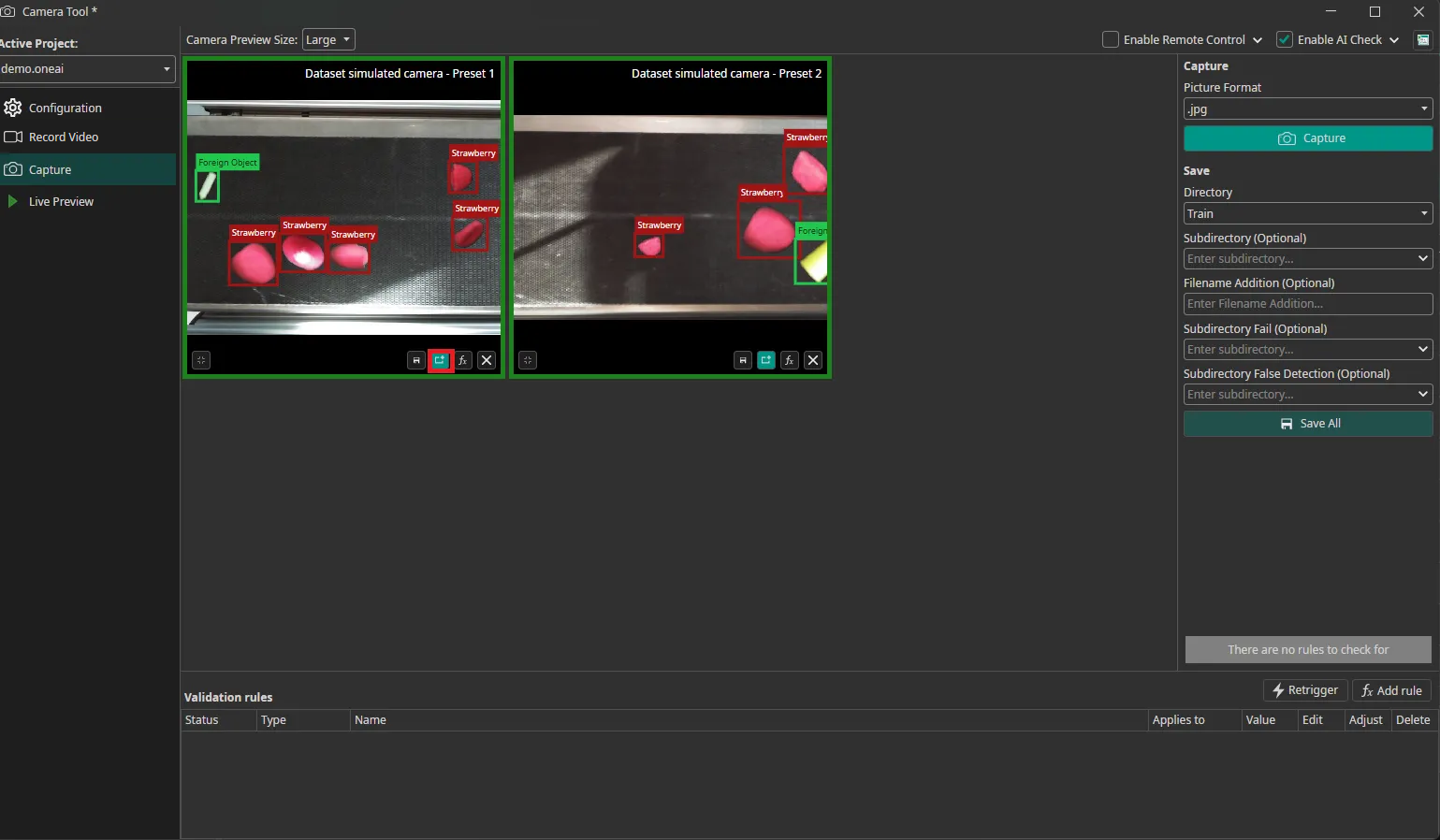
The predictions are visible in the preview and you can view them in detail in the Annotation Tool by clicking on the button next to the save icon.
Here, you can also correct any mistakes that were made by your model.