AI Preview
Testing Models in the AI Preview
Use the AI Preview tab in the Camera Tool to test your exported ONNX models in real time on a connected camera or a simulated video feed.
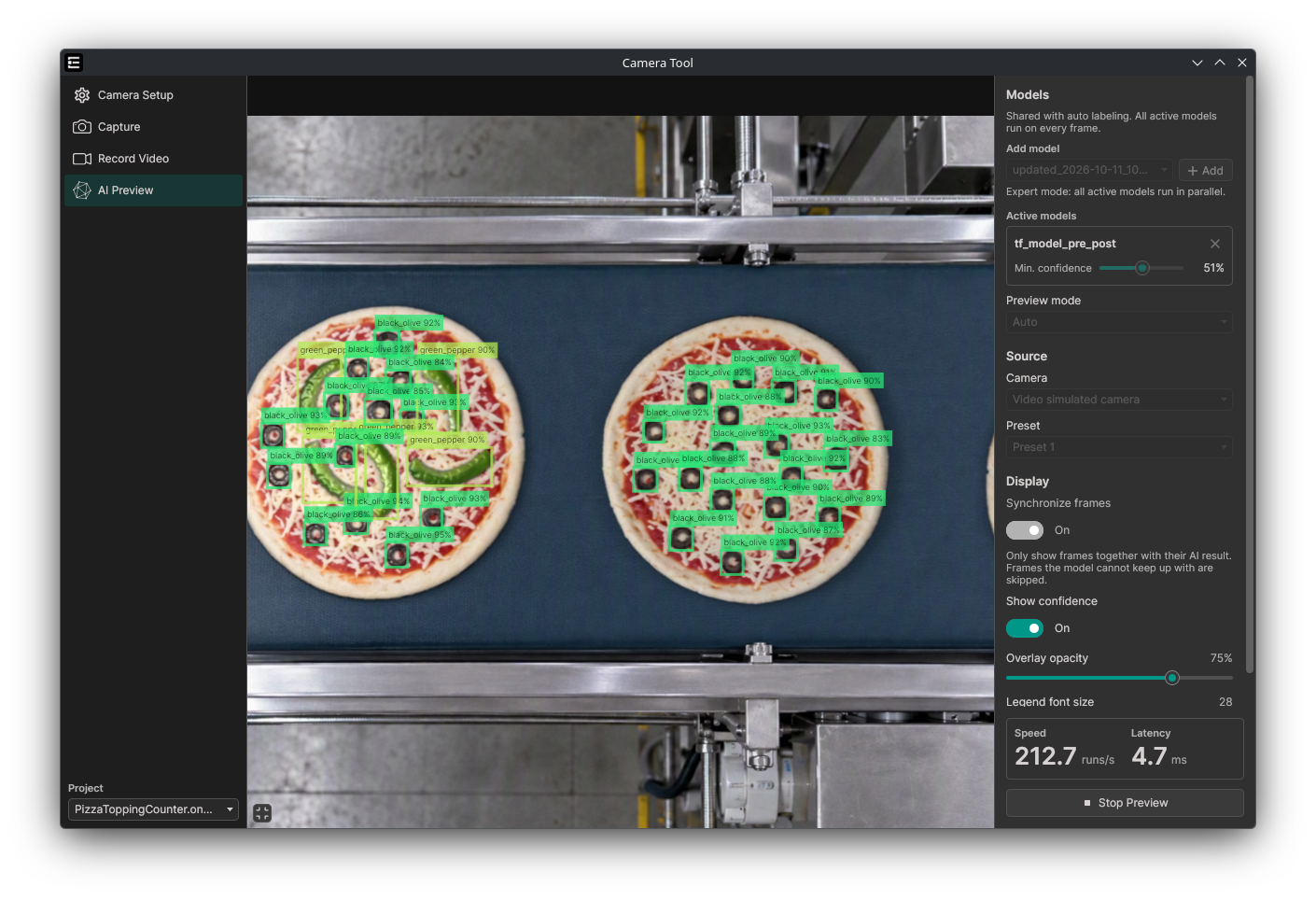
How to Run a Live Preview
- Export and download your trained model in ONNX format so it becomes available in ONE WARE Studio.
- Open AI → Camera Tool and switch to the AI Preview tab on the left.
- Under Models, select your exported model in the Add model dropdown and click + Add (in Expert mode, you can add multiple active models to run in parallel).
- Adjust the Min. confidence slider for each active model to filter out low-confidence predictions.
- Under Source, choose your Camera (such as a connected USB/industrial camera or a video-simulated camera) and Preset.
- Click Start Preview at the bottom right to run live inference on your local machine.
Settings and Controls
- Preview mode: Set to Auto by default to automatically match your model's task (Classification, Object Detection, or Segmentation), or select a mode manually.
- Synchronize frames: When enabled, only displays frames together with their corresponding AI prediction and skips frames the model cannot keep up with.
- Show confidence: Toggles the confidence percentage next to each predicted label on the video overlay.
- Overlay opacity & Legend font size: Adjust the transparency of bounding boxes/masks and the size of the on-screen labels.
- Speed & Latency: Displays real-time inference throughput (
runs/s) and per-frame latency (ms) at the bottom right.