Start the training
Requires an active connection to the ONE AI Cloud.
This page covers the full model lifecycle: creating a model instance, configuring and running training, evaluating results with testing, and exporting the model for deployment.
Training
Select the target model, then click Train to open the training dialog.
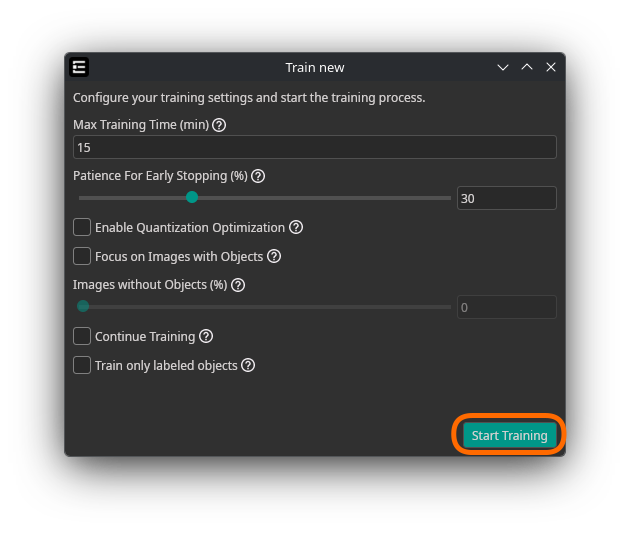
Parameters
| Parameter | Description |
|---|---|
| Max Training Time (min) | Maximum training duration in minutes. Simpler tasks (e.g. basic classification) may need only 10 minutes; advanced tasks (e.g. object detection) could need 60 minutes or more. You can review results after initial training and extend as needed. |
| Patience for Early Stopping (advanced) | Percentage of training time without improvement before automatic stop. Recommended: 5–15%. Set equal to total training time to ensure fully trained models. |
| Enable Quantization Optimization | Trains a quantization-aware model. Helps the model adjust to quantized operations, improving final accuracy on quantized exports. May slow down training. Consider starting without it for faster initial evaluation. |
| Focus on Images with Objects | Trains only on images that contain annotated objects. Helps the model learn faster to detect objects and handle many different objects, but spends less time learning backgrounds. Only visible for Object Detection and Segmentation tasks. |
| Enrichment with Images without Objects (%) | When "Focus on Images with Objects" is enabled, this controls how many images without objects to include. 100% means equal numbers of images with and without objects. |
| Train only labeled objects (advanced) | Trains only on labeled objects, disregarding other parts of the image. Useful when images are not fully labeled — the model can then help with labeling or be further trained on more data. Only available for Object Detection. |
| Continue Training | If a previous training exists for this model, continue training from the last checkpoint instead of starting fresh. |
Validation Settings
Validation data is used during training to evaluate the model on unseen data and prevent overfitting.
| Parameter | Description |
|---|---|
| Use Validation Split | If you don't upload separate validation images or want to extend them, designate a portion of the training images as validation data. Make sure to use some form of validation (either upload images or use a validation split) for good results. |
| Validation Split (%) | Percentage of training images to use as validation. Recommended: 30% for small datasets, 20% for most datasets, 10% for large datasets. Set to 0% to exclusively use uploaded validation images. |
Cost & Progress
Credit cost is displayed before training starts. Early stopping may reduce actual cost below the estimate. Total time includes data upload and preprocessing overhead.
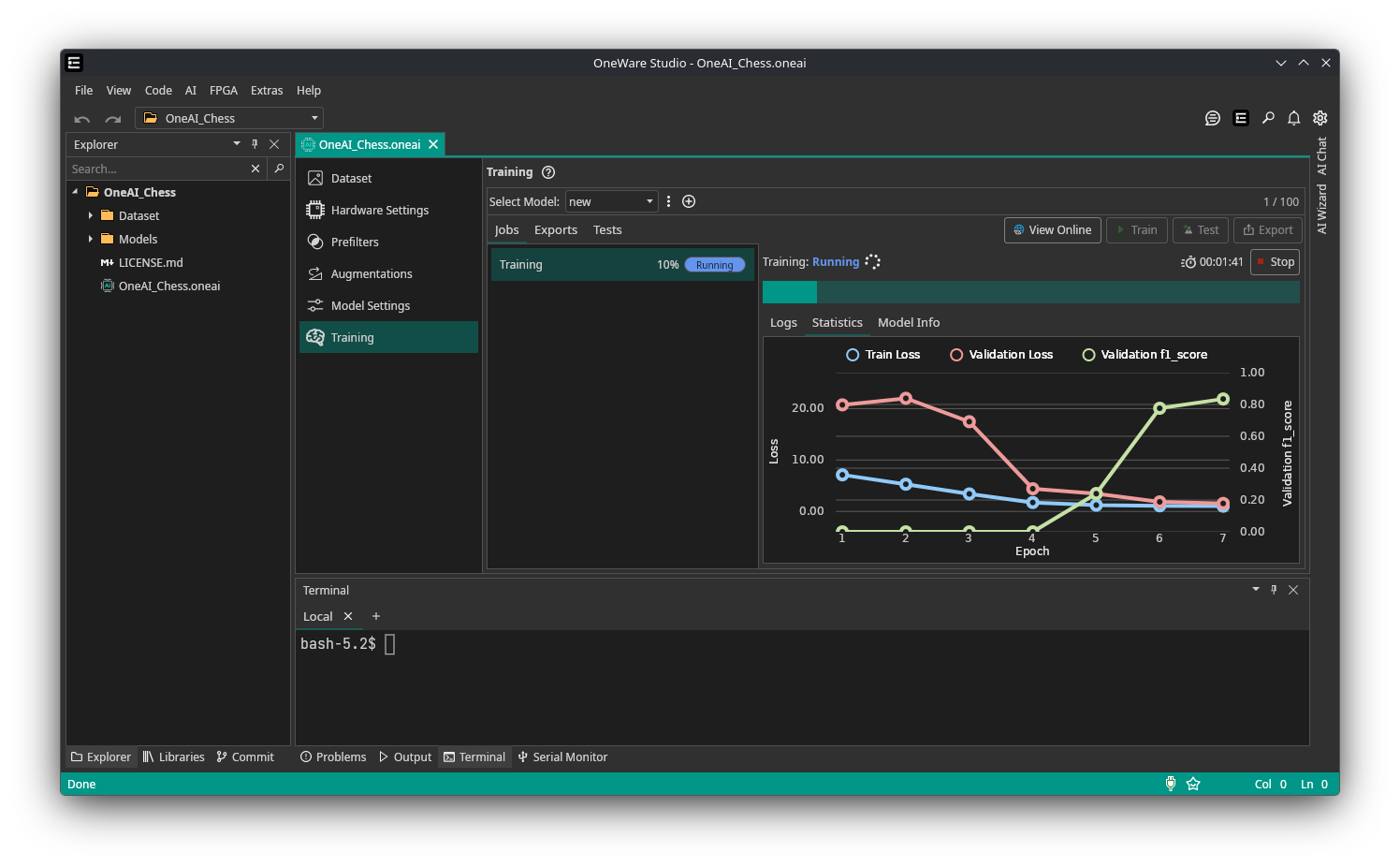
Training progress is visible in the Statistics tab. Training can be stopped manually at any time.

Need Help? We're Here for You!
Christopher from our development team is ready to help with any questions about ONE AI usage, troubleshooting, or optimization. Don't hesitate to reach out!