Setup Software
This guide walks you through the complete setup: installing ONE WARE Studio, adding the ONE AI Extension, and connecting to ONE WARE Cloud.
1. Install ONE WARE Studio
ONE WARE Studio is the cross-platform desktop IDE that powers all ONE WARE products. Download and install it for your operating system:
- Windows
- Linux
- MacOS
| Architecture | Download |
|---|---|
| x64 | Loading... |
| arm64 | Loading... |
Or install using winget:
winget install OneWare.OneWareStudio
Using Snap (Recommended)
ONE WARE Studio is officially distributed as a Snap package in the Snap Store:

You can install it by running:
sudo snap install --classic oneware
Note: If snap isn't available in your Linux distribution, please check the following Installing Snapd guide, which can help you get that set up.
Using Flatpak
Another possibility is the use of our flatpak:
You can install it by running:
flatpak install flathub com.one_ware.OneWare
Manual Installation
If you can't install snap or flatpak on your machine, you can download the universal Linux binaries (.tgz) manually. Older versions are available on GitHub. Please note that as of now these binaries have no update functionality, so make sure to check for updates regularly.
| Architecture | Download |
|---|---|
| x64 | Loading... |
| arm64 | Loading... |
| Architecture | Download |
|---|---|
| x64 (Intel) | Loading... |
| arm64 (Apple Silicon) | Loading... |
2. Install the ONE AI Extension
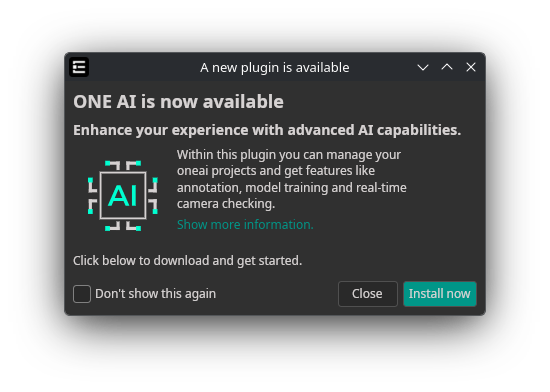
When you open ONE WARE Studio for the first time, the welcome screen lets you install the ONE AI Extension with a single click on Install now.
3. Log in to ONE WARE Cloud
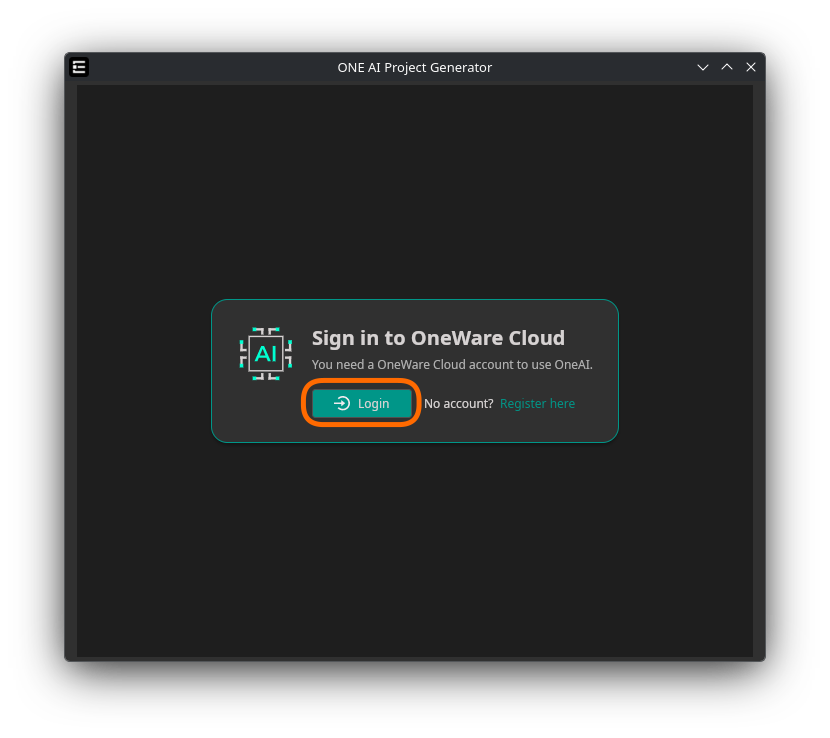
After installing the ONE AI Extension, you will be prompted to log in to your ONE WARE Cloud account.
If you don't have an account yet, you can create one for free here and sign up with your email, or use GitHub or Google for one-click registration.
Your data stays on your local PC until you explicitly click Train or Sync to Cloud in the Training tab (see File Sync). If you work with sensitive data, have a look at the Self-Hosted ONE AI Worker, which keeps your data entirely on your own infrastructure, or contact us.
Next Steps
- Quick Start Guide — Train your first AI model in minutes
- Training Tips — Best practices for creating good datasets and models
- Demo Projects — Hands-on examples for classification, detection, and segmentation
- Quick Start — Try out pre-configured projects with your own data in just a few clicks

Need Help? We're Here for You!
Christopher from our development team is ready to help with any questions about ONE AI usage, troubleshooting, or optimization. Don't hesitate to reach out!